

Writing SQL Queries
The most common kind of inner tab is the Query Tab, containing the following elements. Keyboard shortcuts below are the Windows/Linux defaults; on macOS, OmniDB's own shortcuts use Ctrl instead of Alt. All of them can be changed under Settings > Shortcuts.
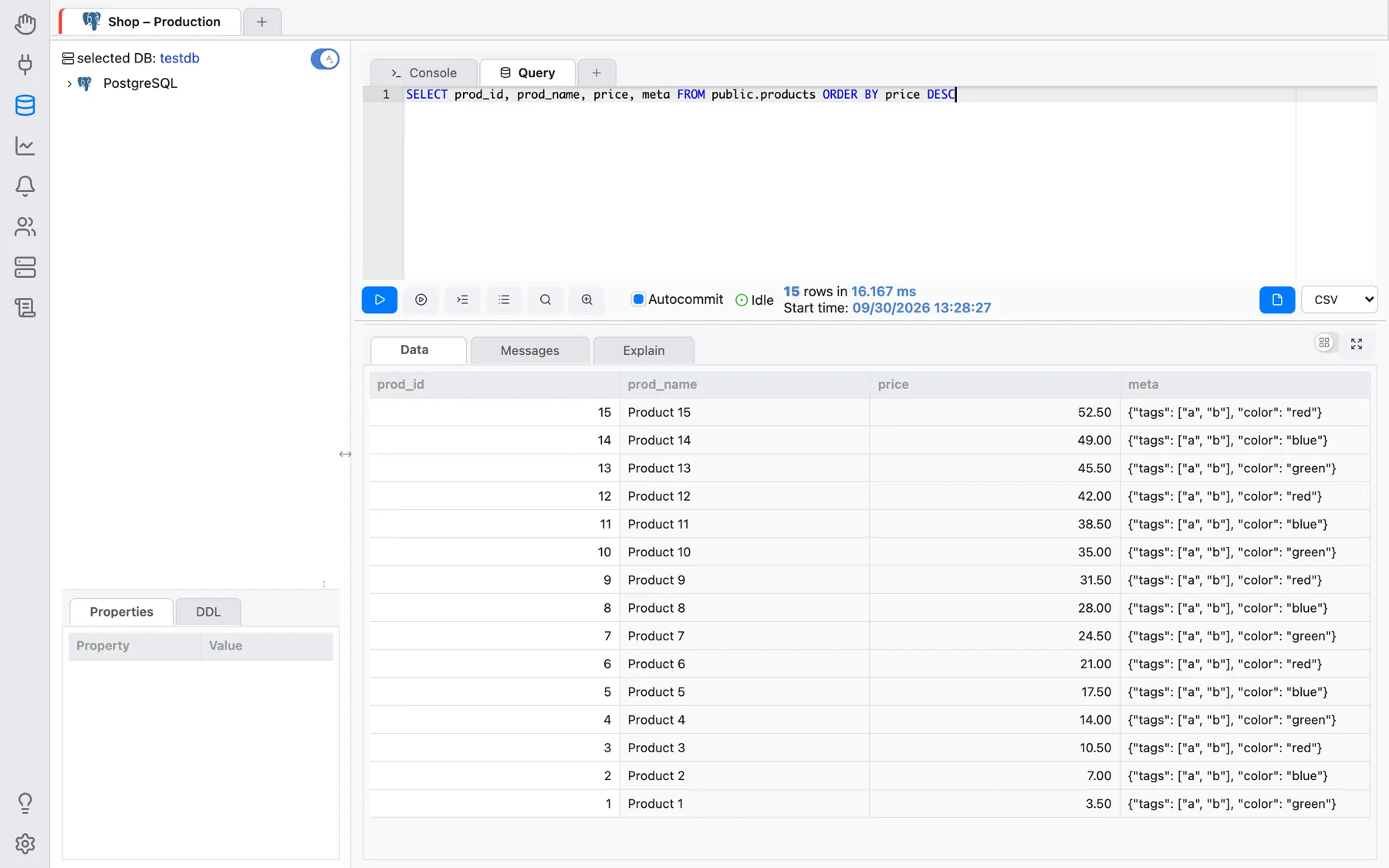
- 1) Tab Header: You can see the name of the tab and, on hover, an icon to close it. While a query is running in the tab you will see a spinner; if it finishes while you are working on a different tab, a checkmark is shown. Right-clicking the tab and choosing Rename Tab lets you rename it.
- 2) Add Tab: You can quickly add another inner tab (Query Tab or Console Tab) by clicking on the plus icon.
- 3) SQL Editor: Full-featured SQL editor with SQL syntax highlighting, code
folding, Find & Replace (
Ctrl-FandCtrl-H), a vertical ruler line (its column is set under Settings > Formatting) and an autocomplete component, explained below. Right-clicking in the editor offers Copy, Save as snippet and Use snippet (see Snippets). See Editor Keyboard Shortcuts for the full list of editor shortcuts (selection, multicursor, navigation, folding, etc.). - 4) Run: The text contained in the SQL Editor will be executed against the
current active database when you click on this button (or press
Alt-Q). If there is some selected text in the SQL Editor, only the selected text is executed. The editor may contain several statements separated by semicolons; they run one after another and the grid shows the result of the last one. Once the command is running, a red Cancel button is shown, allowing you to cancel the execution (or pressAlt-C). - 5) Run Statement at Cursor: Runs only the single statement the cursor is
in, without having to select it first. With the cursor right after a
;, the following statement is run. - 6) Indent SQL: This button will prettify any SQL code written in the SQL
editor (shortcut
Alt-S), following the style chosen under Settings > Formatting (indentation, comma style, keyword case). - 7) Command history: All commands executed against the current connection are stored in the command history, which can be accessed by clicking on this button. You can filter it by date range and by text to find the SQL command you need.
- 8) Explain (PostgreSQL only): Runs your SQL query with
EXPLAINin front of it (shortcutAlt-W). The results will be shown in a textual and graphical form in the Explain tab (please see Visualizing Query Plans for more details). - 9) Explain Analyze (PostgreSQL only): Same as Explain button, but runs the
SQL query with
EXPLAIN (ANALYZE, BUFFERS), which will effectively execute the query (shortcutAlt-E). - 10) Autocommit (PostgreSQL only): When enabled, every query executed will be committed to the database. When disabled, OmniDB starts a transaction and upon execution of a query, the interface will show buttons allowing the user to Commit or Rollback. The user can also keep the transaction open and execute other commands.
- 11) Backend Status (PostgreSQL only): When you open a new Query Tab, the status is Not connected, because OmniDB didn’t start a PostgreSQL backend yet. When you execute the first query, OmniDB starts a new backend and keeps it linked to the Query Tab (each Query Tab gets its own backend). The status of the backend (Idle, Running, Idle in transaction, etc.) will be shown in this field. When you close the Query Tab, OmniDB terminates the backend.
- 12) Export File Type: CSV, TSV, XLSX, JSON, XML or Markdown.
- 13) Export Data: By clicking on this button, OmniDB executes the current query and exports the whole result to a file of the chosen type. In the desktop app, a native Save As dialog opens so you can choose where to save it directly, and OmniDB confirms with File exported to: …. When running as a browser-based OmniDB Server instead, the file is written to the server’s temp folder first, and the result area then shows The file is ready. with a Save link that downloads it through the browser. CSV/TSV encoding and the CSV delimiter are set under Settings > Export.
- 14) Data Results: If the query is a
SELECT, then it will show a grid with the results; the first column stays pinned while you scroll horizontally, and hovering a column header shows its full name. If the query is a DML or DDL, it will show the message returned by the RDBMS. When there are more rows than the first batch, Fetch more loads the next batch and Fetch all the rest. Right-click a cell for Copy or View Content; JSON and XML values are shown syntax-highlighted. - 15) Messages (PostgreSQL only): Any messages (such as the ones given by the
command
RAISE NOTICE) will be shown here. - 16) Explain View (PostgreSQL only): Shows a full-featured component to view the PostgreSQL execution plan in textual or graphical form.
The divider between the editor (with its toolbar) and the results can be dragged to give either more room.
Safety confirmation for destructive statements
Before running a statement that starts with DROP or TRUNCATE, or an
UPDATE/DELETE without a WHERE clause, the Query Tab asks for
confirmation (This statement is destructive and cannot be undone. Run it anyway?, or
This statement has no WHERE clause and will affect ALL rows. Run it anyway?). This is a
safety net against honest mistakes, not a permission system — it looks only at the beginning of
the text (after comments).
Once executed, the tabs are also saved in OmniDB user database (title and contents), so the next time you open OmniDB, you will see them all open. Also, every command you execute in a Query Tab is saved to the command history of that connection.
SQL Autocomplete
The SQL editor has a feature that helps a lot when creating new queries: SQL code completion.
Open the suggestions with Ctrl-Space
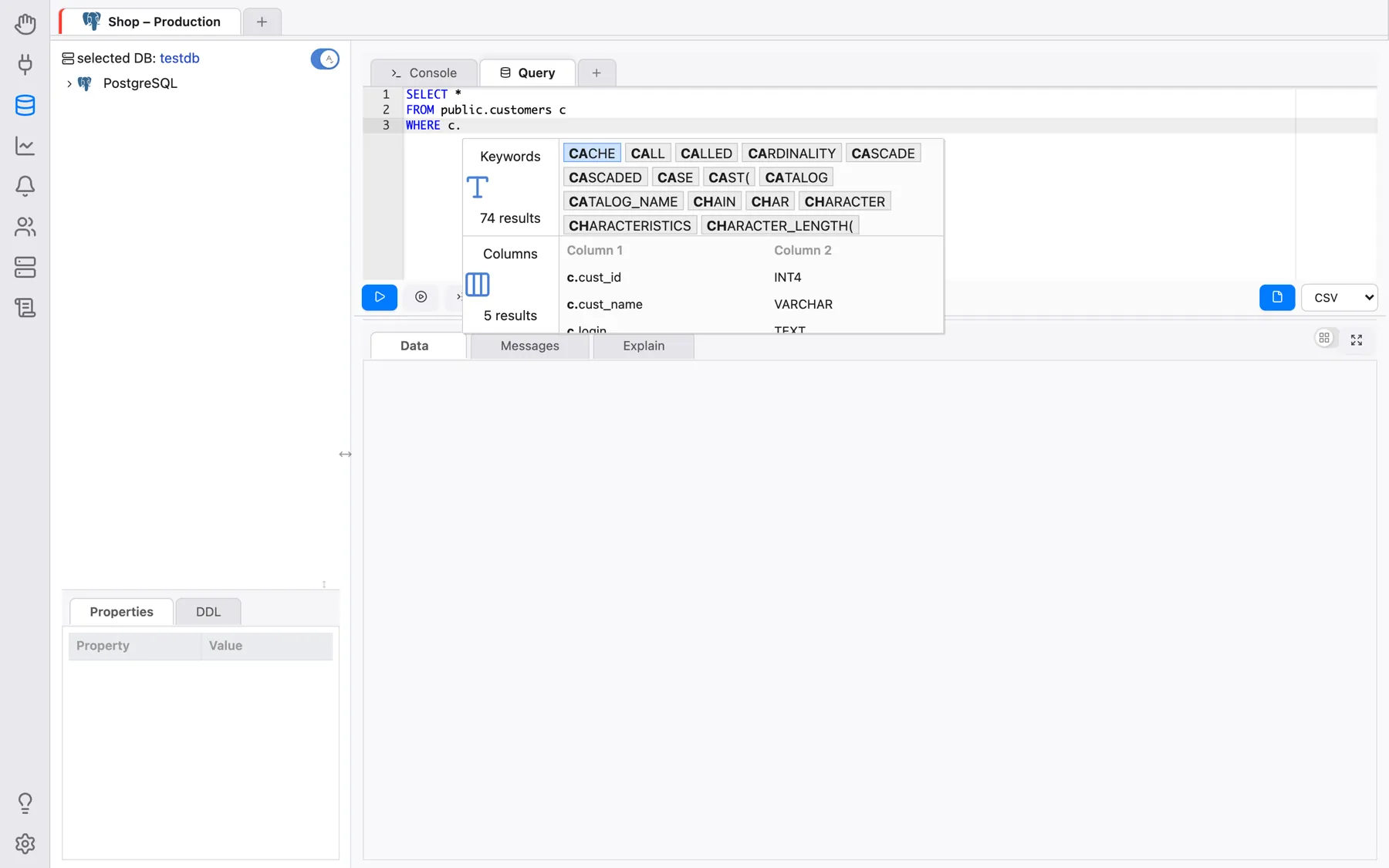
(Option-Space on macOS). With this feature it is possible to autocomplete columns
contained in a table referenced by an alias: type the alias, the character . and
then open the autocomplete:
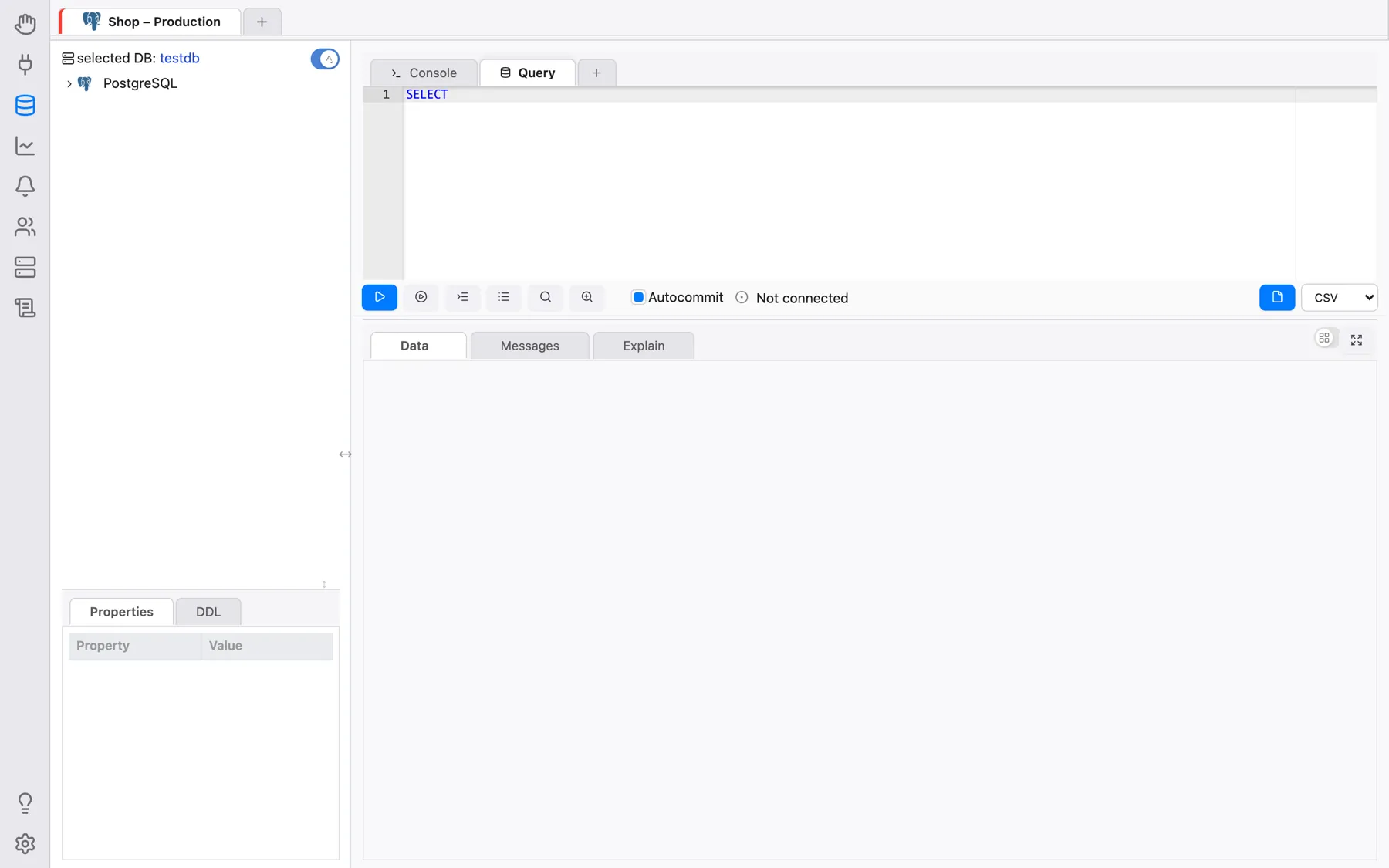
If the user does not start the autocomplete with the cursor close to a table alias, the component will show multiple categories of data. By typing in the filter textbox, elements in all categories will be filtered:
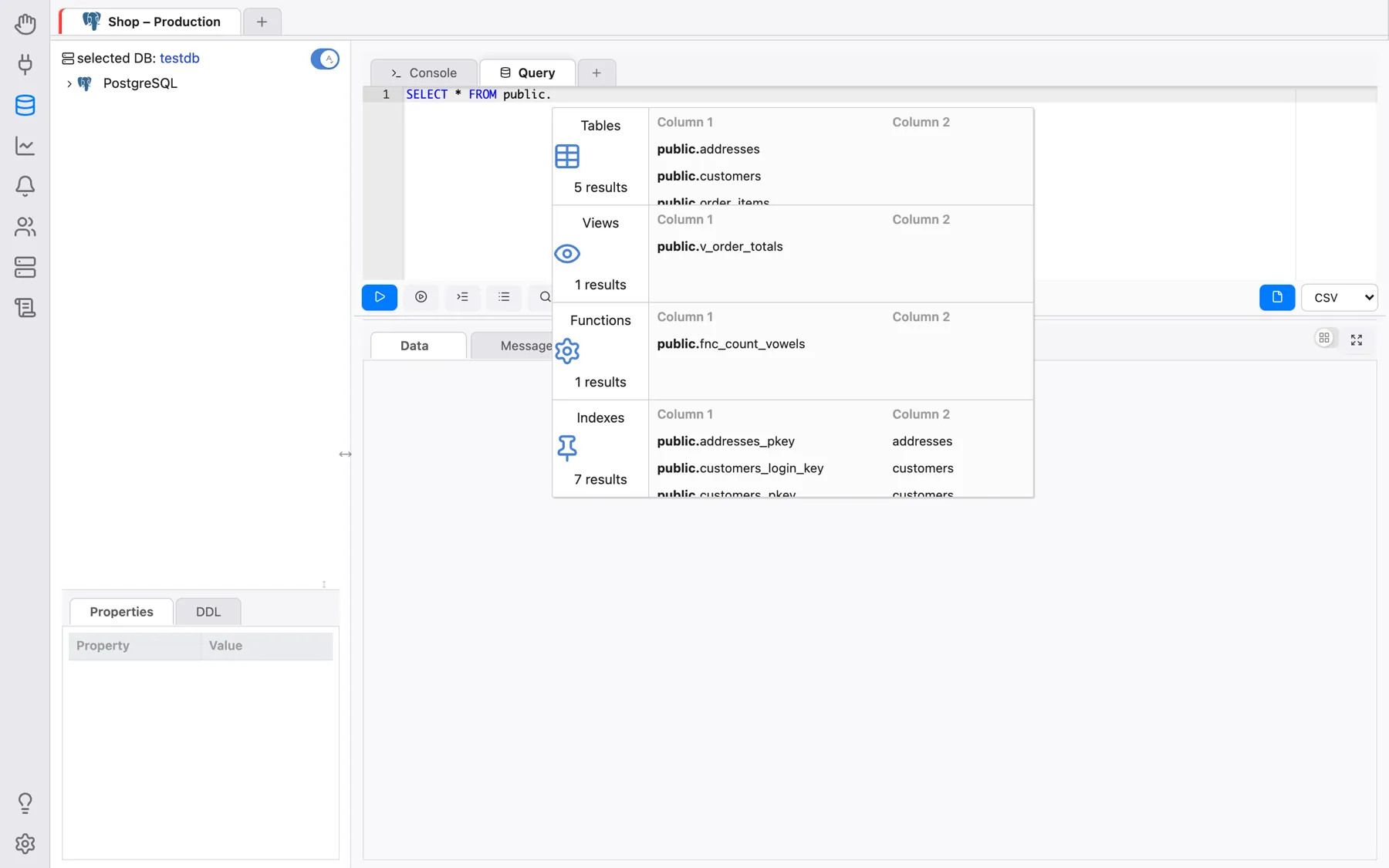
The autocomplete component is also able to identify some contextual information. For example,
if you type a name of a schema, then type the character ., you will be able to filter
among objects contained only in that schema:
After :: (a PostgreSQL type cast), only data types are offered. Choosing a keyword
also adds what always follows it (for example a space after SELECT, or the opening
parenthesis after COALESCE). Which categories are offered at all (keywords,
databases, roles, tablespaces, schemas, extensions, tables, views, columns, functions, indexes) is
set under Settings > Autocomplete.
Please note that for RDBMS other than PostgreSQL, the autocomplete component only works for table columns.