

Managing Databases
After creating a connection you can open it by clicking Connect in the Connections section, or by double-clicking it in the connection list. OmniDB then switches to the Database section and opens the connection in a new connection tab.
Sections of the workspace
The icon rail on the left edge of the window switches between the workspace's sections:
- Welcome: the start page, with links to the documentation and the Getting started tutorial (see Additional Features);
- Connections: where connections are created, arranged and opened (see Creating Users and Connections);
- Database: the open connection tabs, each with its database tree and its Query and Console tabs — described in this chapter;
- Monitoring, Notify, Permissions and Connected Users: tools that work on the connections open in the Database section (see Monitoring Dashboard, Notify, Roles and Permissions and Connected Users);
- Snippets: your saved pieces of SQL (see Snippets);
- at the bottom, Getting Started (the interactive tutorial), Account (server version only: the current user, the version and Sign out) and Settings (see Settings and Languages; superusers also find Manage Users there).
The Database, Monitoring, Notify, Permissions and Connected Users sections all show the same strip of open connection tabs at the top, with the same selection: select a connection in one of them and the others follow. Switching sections never closes a connection.
Connection tabs
Each open connection is a tab in that strip, named after the connection. A connection tagged with an environment (Production, UAT, Development, Archive) shows that environment's color on its tab, so a production connection is easy to tell apart. Hovering a tab shows its details (server, or connection string), and hovering reveals its close button (×). Tabs can be reordered by dragging them.
The + at the end of the strip opens another connection: it lists your saved connections (grouped, if you use groups) and, under SSH Consoles, your terminal connections. Closing a connection tab ends its database sessions.
Inside a connection tab you find:
- The database tree on the left, where you navigate through the database objects. Right-clicking a node shows what you can do with it.
- The Properties and DDL panels below the tree, showing the properties and the
CREATEstatement of the node selected in the tree. The tree and this panel can be resized by dragging their dividers and collapsed with the small toggle buttons on them. - Inner tabs on the right. The + at the end of the inner tab strip adds a Query Tab or a Console Tab; other actions (such as Edit Data on a table) open their own inner tabs.
A Query Tab contains an SQL Editor with syntax highlighting, autocomplete and find & replace, a toolbar (Run, Run Statement at Cursor, Indent SQL, Command history, Explain, Explain Analyze, Autocommit, Export Data, …) and the results area below it with the Data, Messages and Explain subtabs. See Writing SQL Queries for the details.
Working with databases
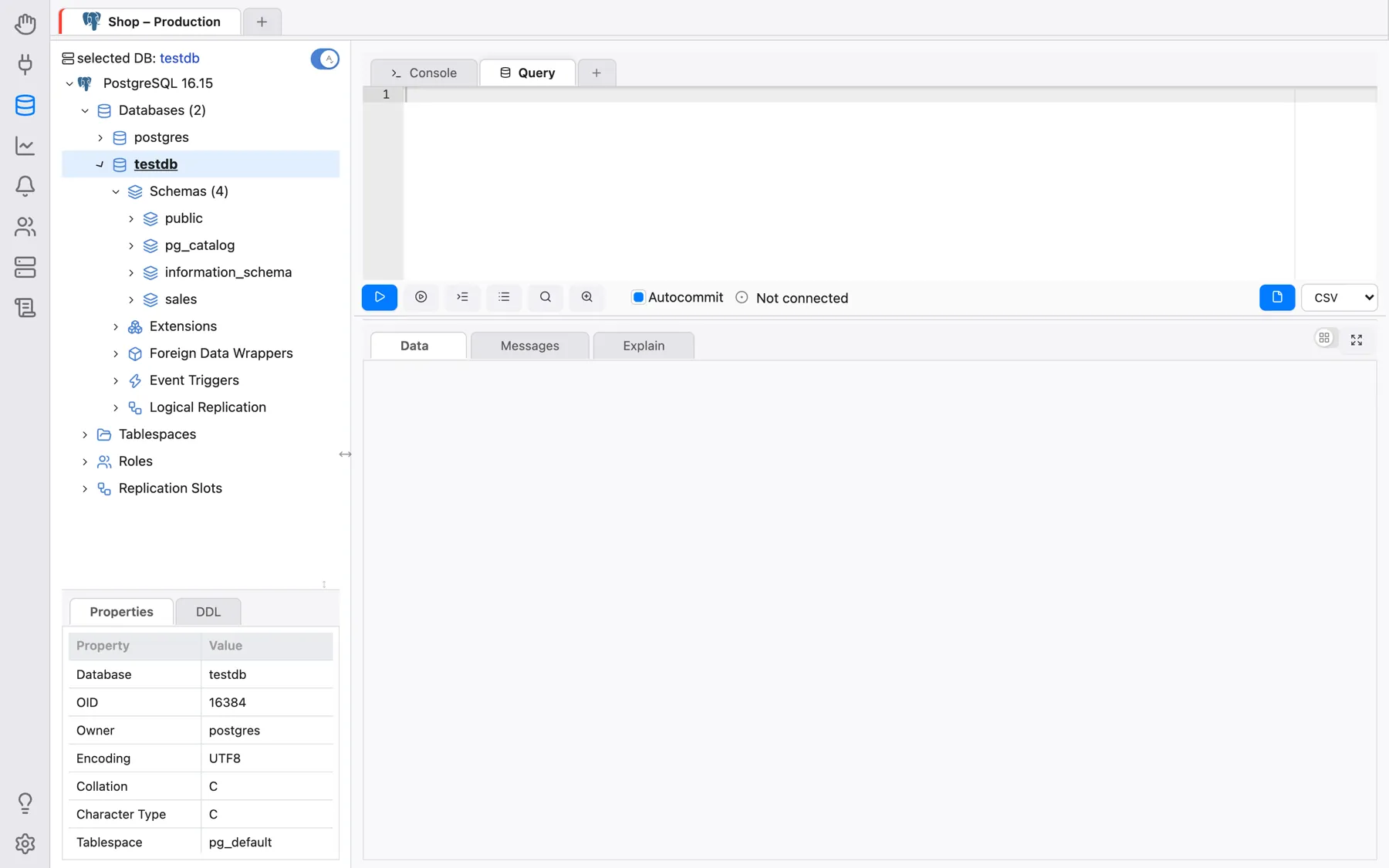
Expand the root node of the tree (named after the database engine). The first time you use a connection whose password is not stored, OmniDB asks for it. A password typed into that prompt is remembered for 30 minutes of your session; after that the prompt appears again. After you type the correct password, the root node shows the server version and expands, showing the current database connection and also instance-wide elements — for PostgreSQL: Databases, Tablespaces, Roles and Replication Slots.
You can connect to a single PostgreSQL database, and using the same connection you can connect to other databases in the same PostgreSQL instance. To switch, expand the node of another database: OmniDB asks whether you really want to change the active database, and on Yes makes it the active database of that connection tab.
Go ahead and expand the Schemas node. You will see all schemas in the current
database (in case of PostgreSQL, TOAST and temp schemas are not shown).
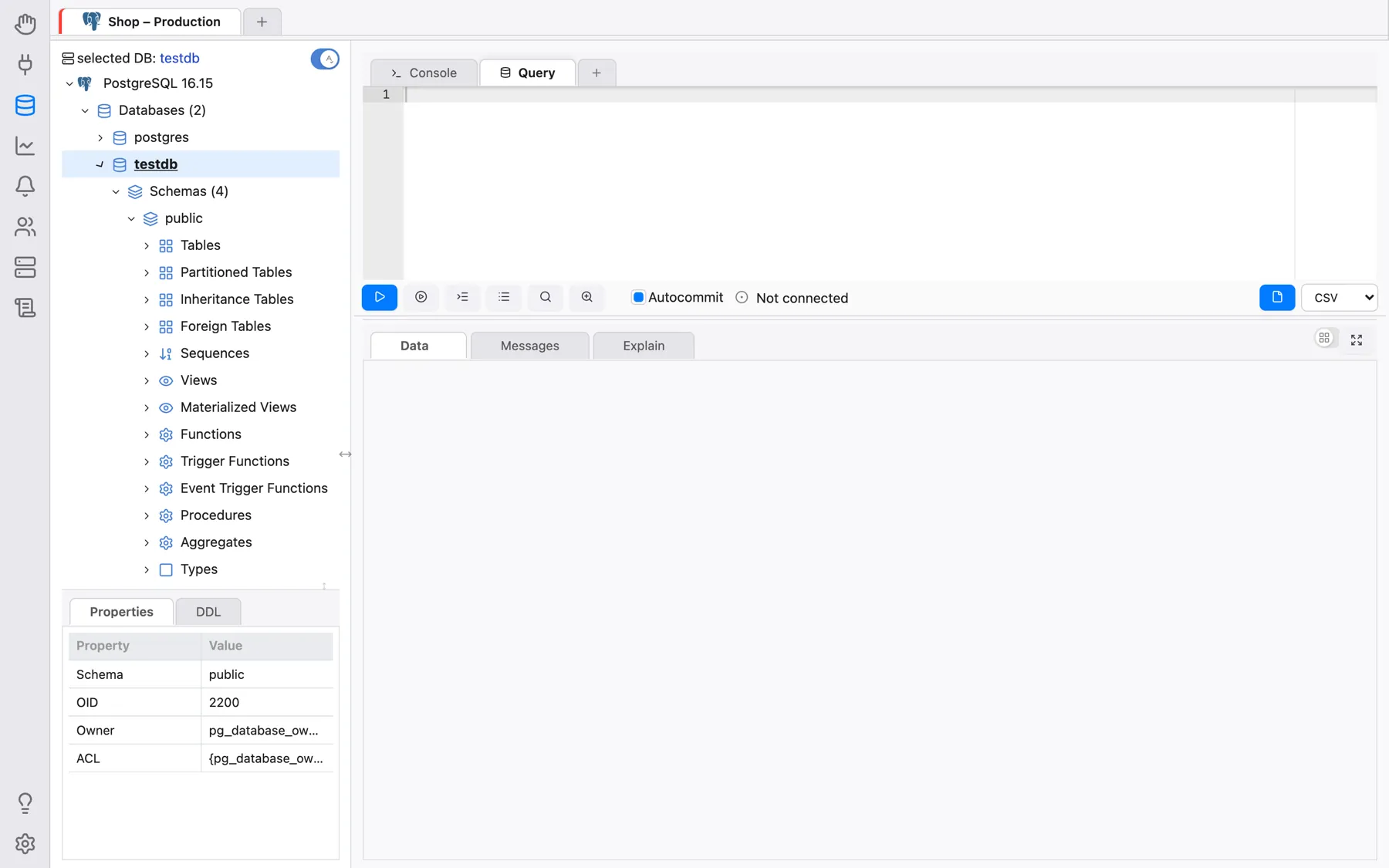
Now click to expand the schema public. You will see different kinds of
elements contained in this schema.
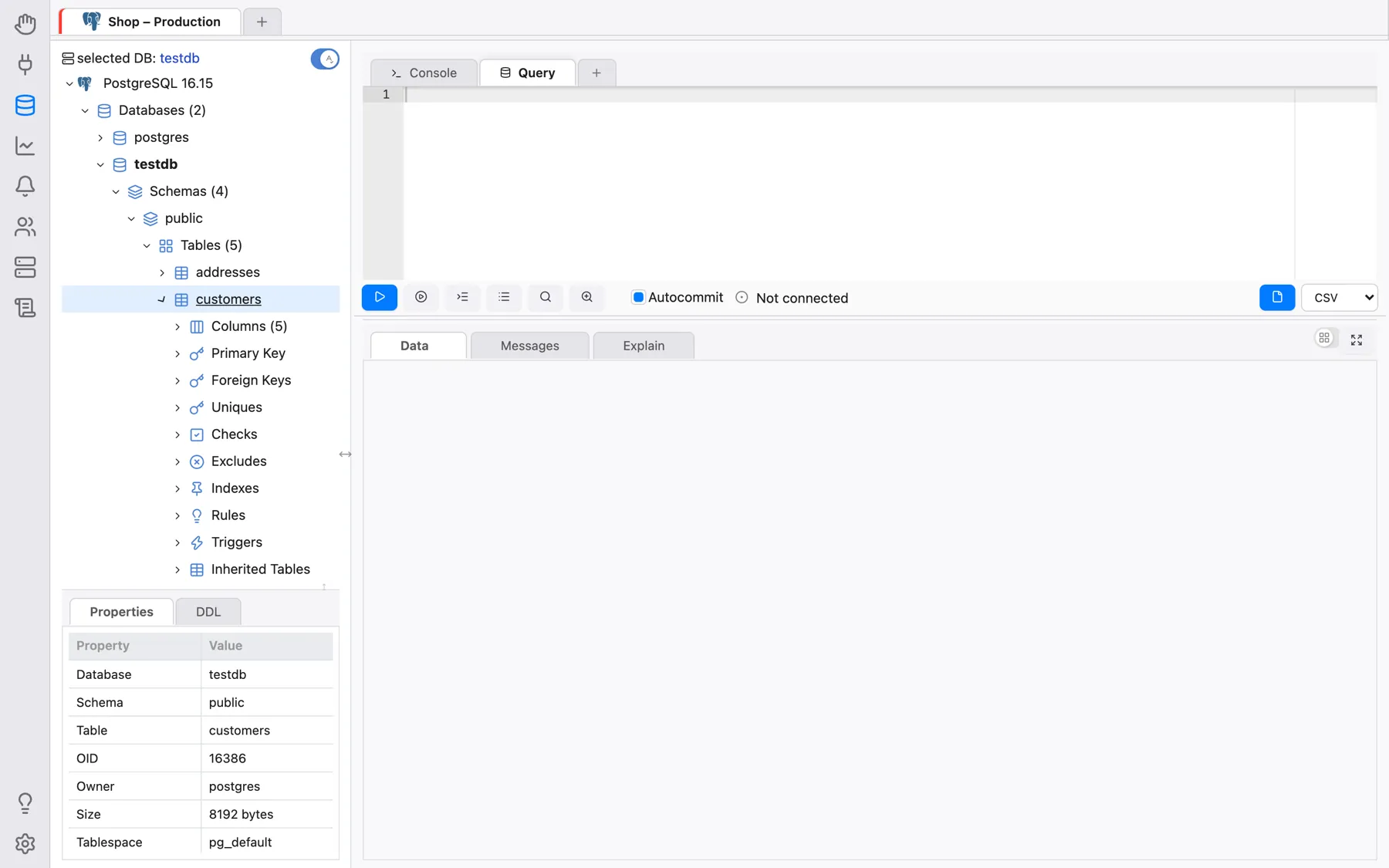
Now click to expand the node Tables, and you will see all tables contained in
the schema public. Expand any table and you will see its columns, primary key,
foreign keys, constraints, indexes, rules, triggers and partitions.
In order to view records inside a table, right click it and choose Data Actions > Query Data.
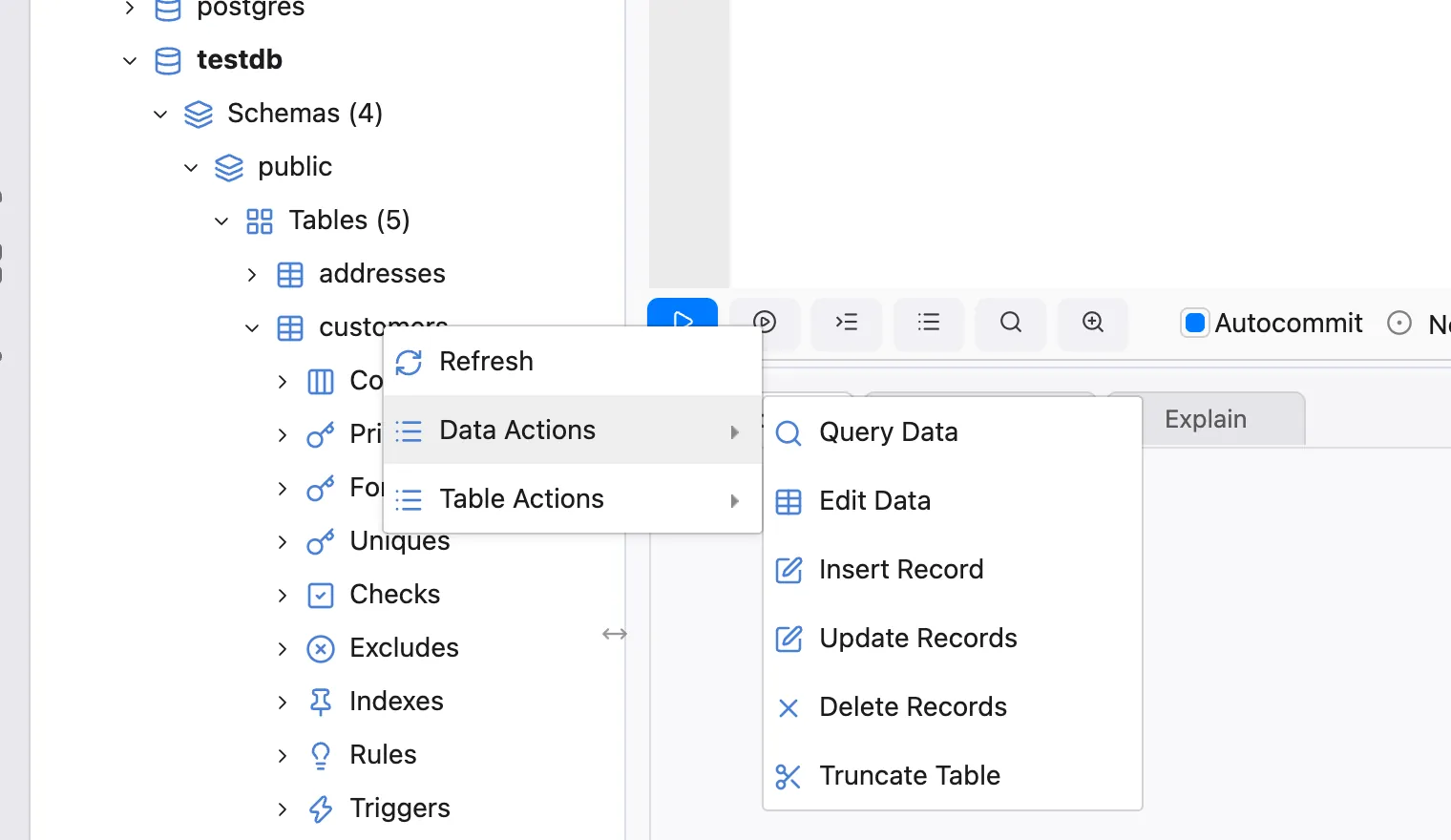
Notice that OmniDB opens a new SQL editor with a simple query to list table records. The records are displayed in a grid right below the editor. This grid can be controlled with keyboard as if you were using a spreadsheet manager. You can also copy data from single cells or block of cells (that can be selected with the keyboard or mouse) and paste on any spreadsheet manager.
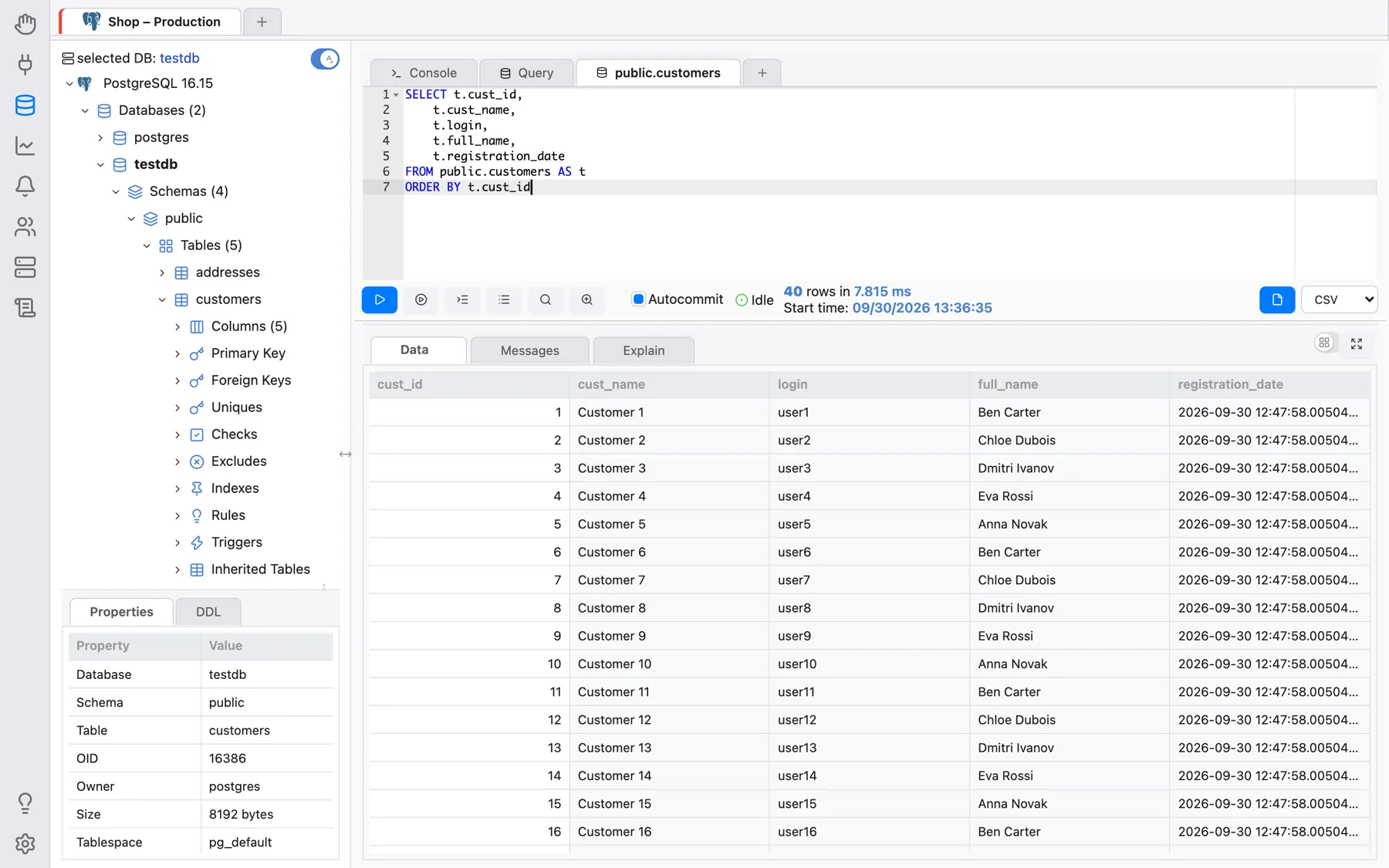
You can edit the query on the SQL editor, writing simple or more complex
queries. To execute, click on the Run button or press Alt-Q
(Ctrl-Q on macOS). If the result has more rows than the first batch fetched, the
buttons Fetch more and Fetch all appear. More details in the next chapters.
Working with multiple tabs inside the same connection
Inside a single connection, you can create several inner tabs by clicking on the + at the end of the inner tab strip, and then choosing Query Tab (or Console Tab).
On OmniDB, you can execute several SQL statements and procedures in parallel. Each Query Tab has its own database session. While a tab is executing, a spinner is shown on it; when a tab you are not looking at finishes, it shows a checkmark instead. The red Cancel button cancels the statement running in the current tab.
You can also drag and drop a tab to change its order. This works with both inner tabs and connection tabs. When a row of tabs runs out of room, the tabs shrink step by step down to icon-only; hovering an icon-only tab shows its name.
Additionally, you can use keyboard shortcuts to manage inner tabs. These are the defaults on Windows/Linux (macOS uses Ctrl instead of Alt); all of them can be changed under Settings > Shortcuts:
- Alt-I: Insert a new inner tab
- Alt-Shift-Q: Removes the current inner tab
- Alt-O: Change focus to inner tab at left
- Alt-P: Change focus to inner tab at right
There are no keyboard shortcuts for connection tabs — use the mouse or drag-and-drop for those. (The desktop app's View menu has shortcuts for switching sections; see Desktop App.)
All Query tabs are saved automatically whenever you execute them. Even if you close the OmniDB window or browser tab, they are stored in OmniDB's user database and restored the next time you open OmniDB (in the desktop app) or sign in again (in the server version) — OmniDB then starts in the Database section with those connections open. Closing a connection tab or an inner tab yourself deletes it permanently, so it will not be restored.