

Settings and Languages
Every OmniDB user has their own preferences: interface language, theme, font size, export options, autocomplete categories, SQL formatting style and keyboard shortcuts. They are all set in Settings and stored per user in OmniDB's user database, so they follow you to any browser or machine where you sign in to the same OmniDB server.
Opening Settings
Click the cog icon at the bottom of the left rail. In the desktop app you can also use the menu bar's OmniDB > Settings… (Cmd-, on macOS, Ctrl-, elsewhere), and Help > Keyboard Shortcuts opens Settings directly on the Shortcuts category.
Settings is a two-pane view: categories on the left (Appearance, Export, Autocomplete, Formatting, Shortcuts, Password and, for superusers only, Account) and the selected category's fields on the right. There is no Save button — every field is saved as soon as you change it (text fields shortly after you stop typing). The only exception is the password, which has its own Change Password button.
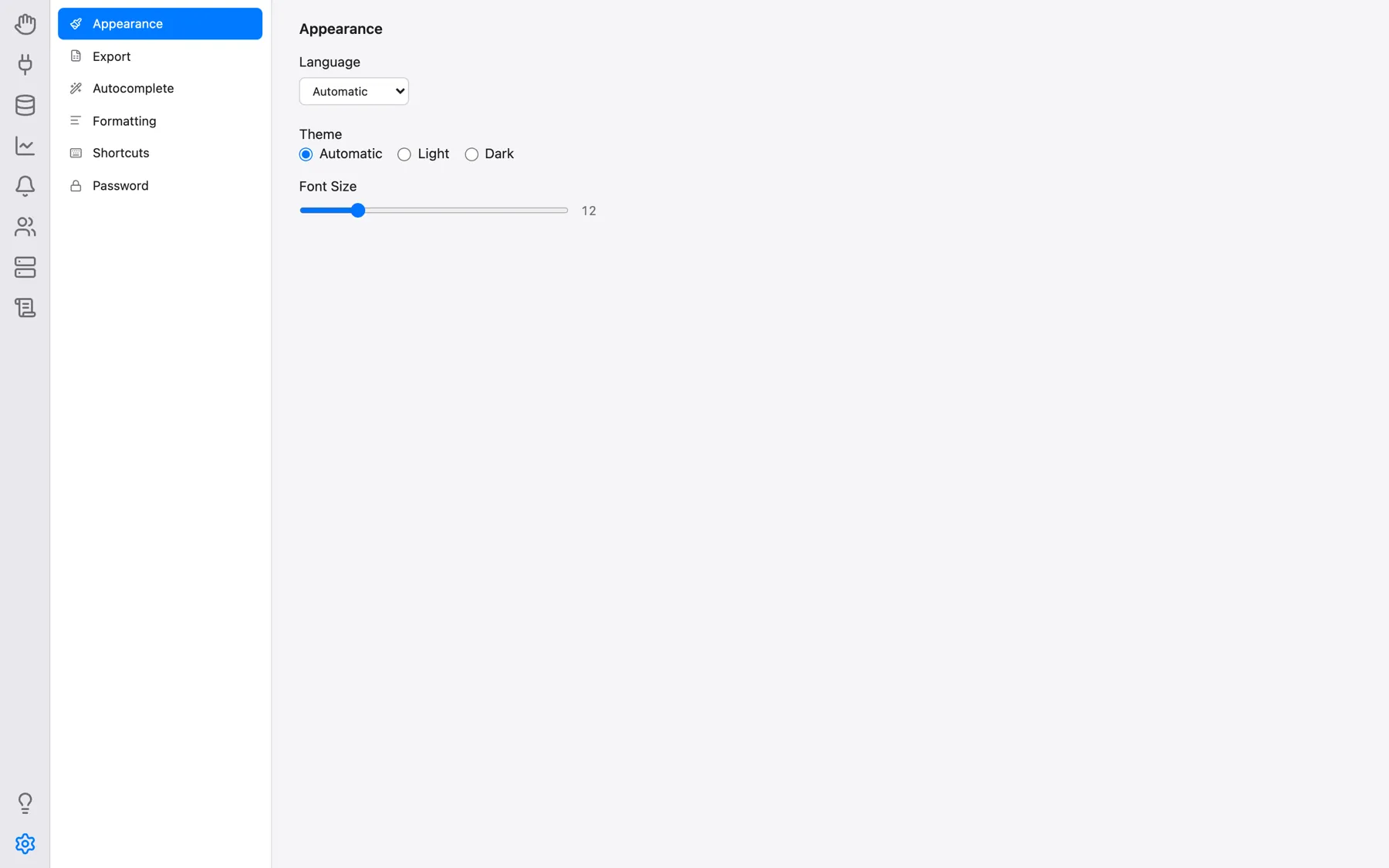
Appearance
- Language: the language of the whole user interface — Automatic, Čeština, Deutsch, English, Español, Français, Italiano, Português, 日本語 (Japanese) or 한국어 (Korean). Automatic (the default) follows the language your browser or operating system asks for, and falls back to English if that language is not available. Changing the language reloads the page. The same applies to the sign-in page, and in the desktop app to the menu bar (see Desktop App). Names of database engines, file formats and character encodings, SQL keywords and messages coming from the database server itself are not translated.
- Theme: Automatic (follows the operating system's light/dark setting, and switches live when it changes), Light or Dark.
- Font Size: a slider from 10 to 20 (default 12) scaling the interface text; the current value is shown next to it.
Export
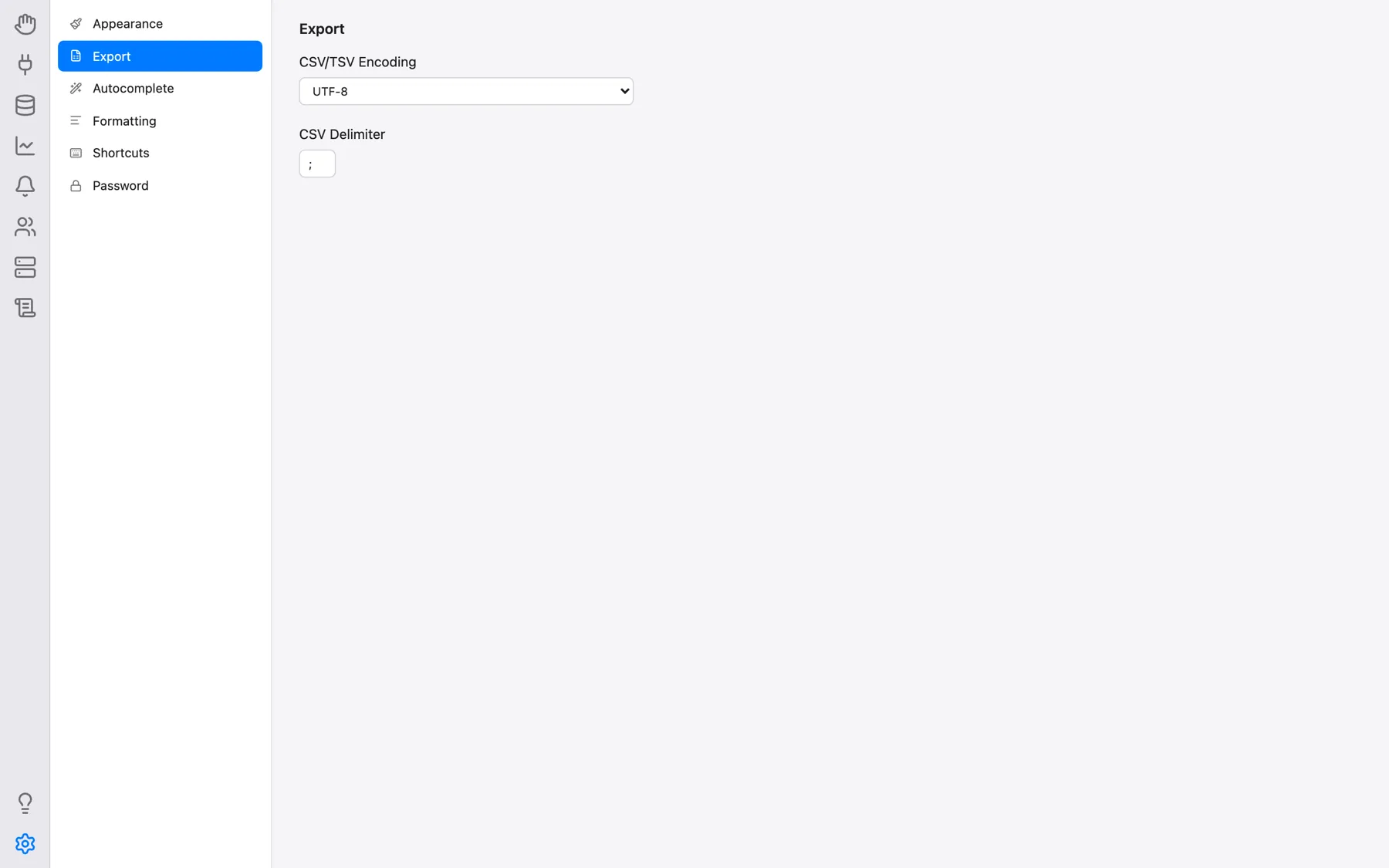
- CSV/TSV Encoding: the character encoding of CSV and TSV exports, grouped into Unicode, Windows codepages, ISO 8859, Cyrillic, East Asian, DOS, Mac and EBCDIC encodings. The default is UTF-8 with BOM, which spreadsheet applications such as Excel recognize as UTF-8 automatically.
- CSV Delimiter: the field separator used for CSV exports (default
;).
See Writing SQL Queries for exporting query results.
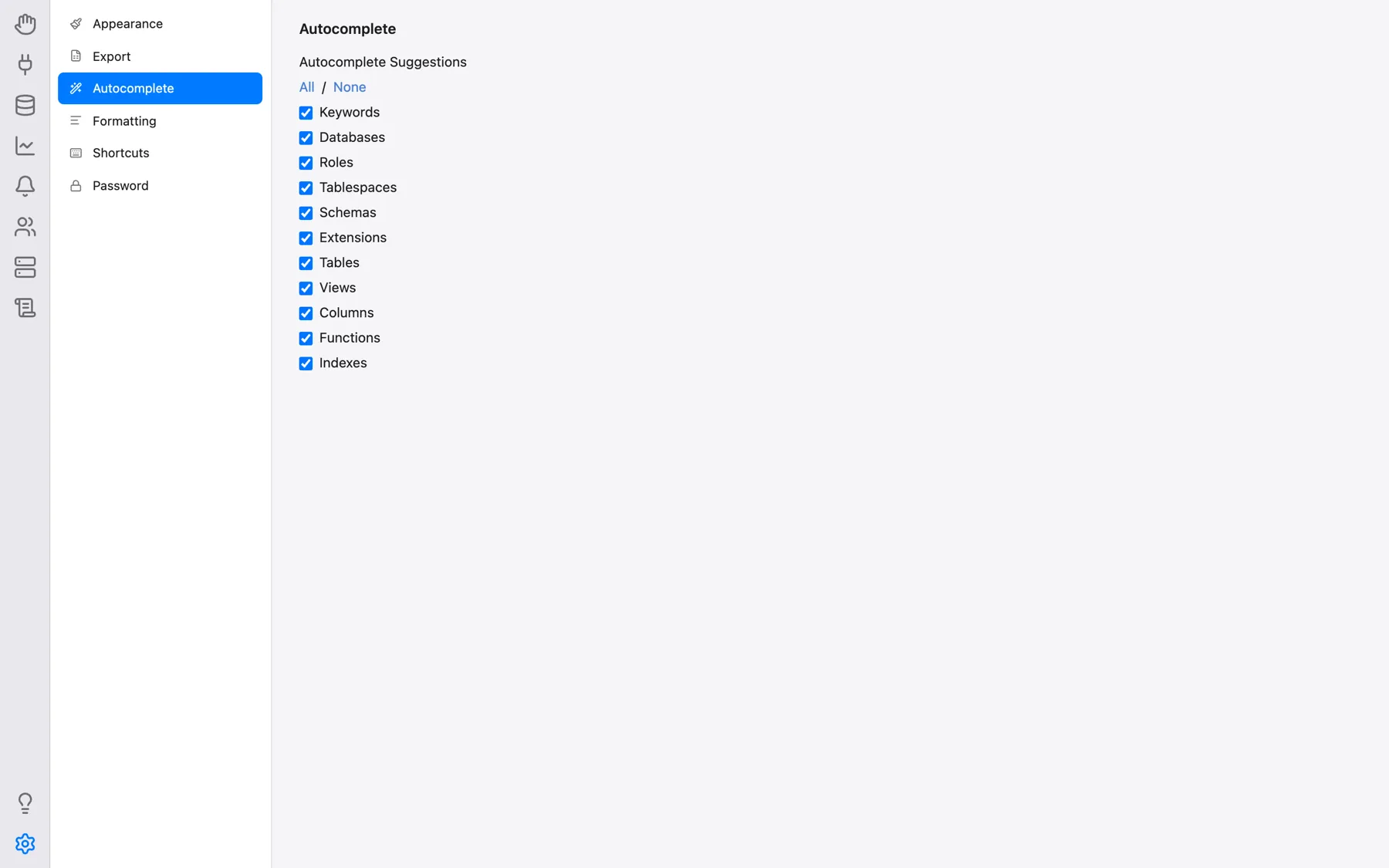
Autocomplete
Autocomplete Suggestions chooses which categories the SQL editor's autocomplete offers: Keywords, Databases, Roles, Tablespaces, Schemas, Extensions, Tables, Views, Columns, Functions and Indexes (All/None toggle them all at once).
Formatting
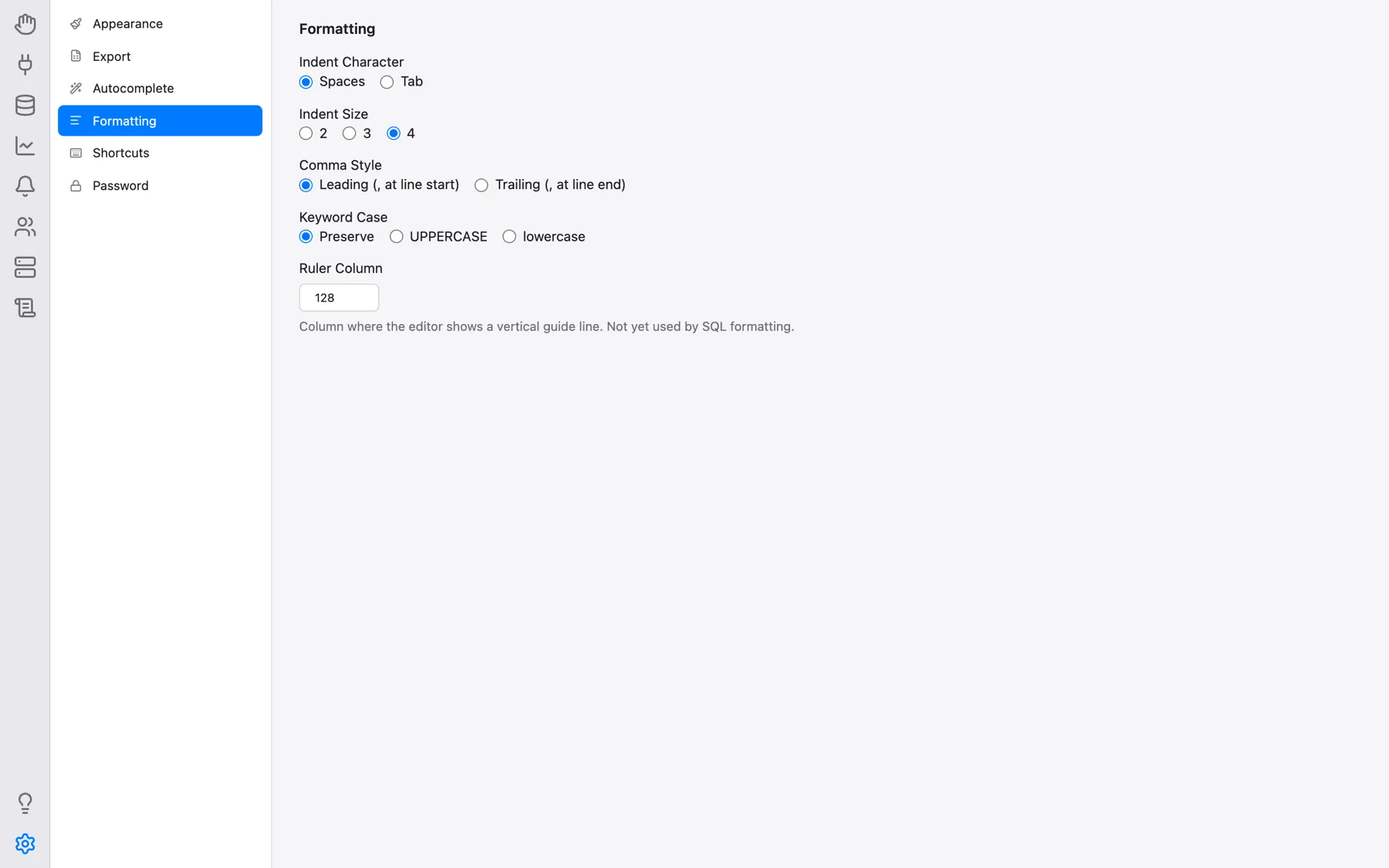
These options control how Indent SQL (the formatter in Query tabs and the Indent button in Snippets) rewrites your SQL, and how the SQL templates generated from the database tree are laid out:
- Indent Character: Spaces (default) or Tab;
- Indent Size: 2, 3 or 4 (default 4);
- Comma Style: Leading (, at line start) (default) or Trailing (, at line end);
- Keyword Case: Preserve (default), UPPERCASE or lowercase;
- Ruler Column: where every SQL editor draws its vertical guide line (24–999, default 128). It is a visual guide only; the formatter does not wrap lines at it.
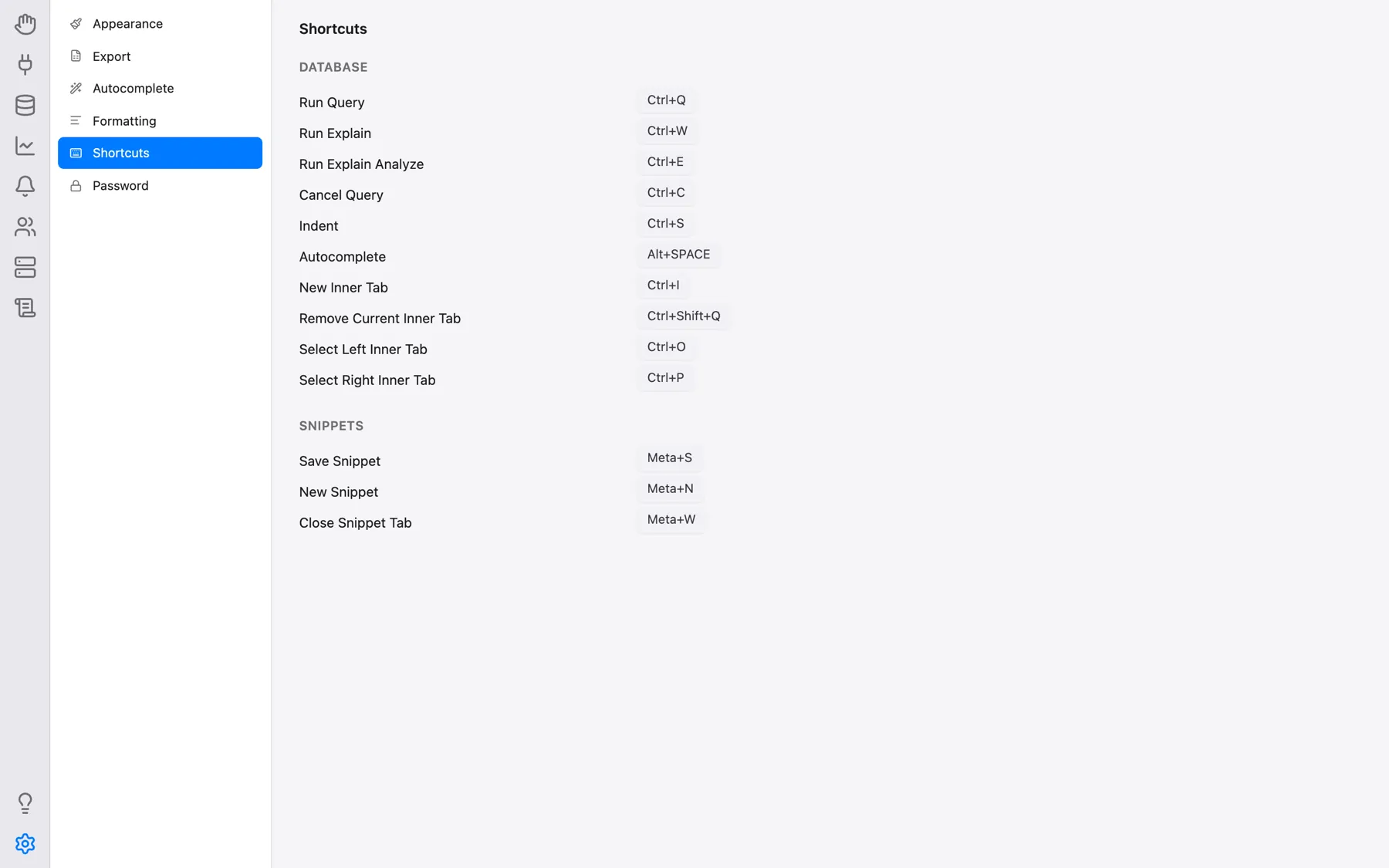
Shortcuts
OmniDB's own keyboard shortcuts, in two groups. To change one, click its button, press the new key combination, or press Esc to cancel. The defaults are:
| Action | Windows/Linux | Mac |
|---|---|---|
| Database (Query and Console tabs) | ||
| Run Query | Alt-Q | Ctrl-Q |
| Run Explain | Alt-W | Ctrl-W |
| Run Explain Analyze | Alt-E | Ctrl-E |
| Cancel Query | Alt-C | Ctrl-C |
| Indent | Alt-S | Ctrl-S |
| Autocomplete | Ctrl-Space | Option-Space |
| New Inner Tab | Alt-I | Ctrl-I |
| Remove Current Inner Tab | Alt-Shift-Q | Ctrl-Shift-Q |
| Select Left Inner Tab | Alt-O | Ctrl-O |
| Select Right Inner Tab | Alt-P | Ctrl-P |
| Snippets (Snippets section) | ||
| Save Snippet | Ctrl-S | Command-S |
| New Snippet | Ctrl-N | Command-N |
| Close Snippet Tab | Ctrl-W | Command-W |
The text-editing shortcuts of the SQL editor itself (selection, multiple cursors, folding, find & replace, …) are listed separately in Editor Keyboard Shortcuts. The desktop app's menu bar adds shortcuts for switching sections (see Desktop App).
Password
Type the New Password and repeat it in Confirm; Change Password becomes available once both match. Changing your password signs out your other sessions. This category is only useful in server mode — the desktop app signs in automatically.
Account
Shown to superusers only: Manage Users opens the User management window where OmniDB users are added, edited and removed — see Creating Users and Connections.