

Roles and Permissions
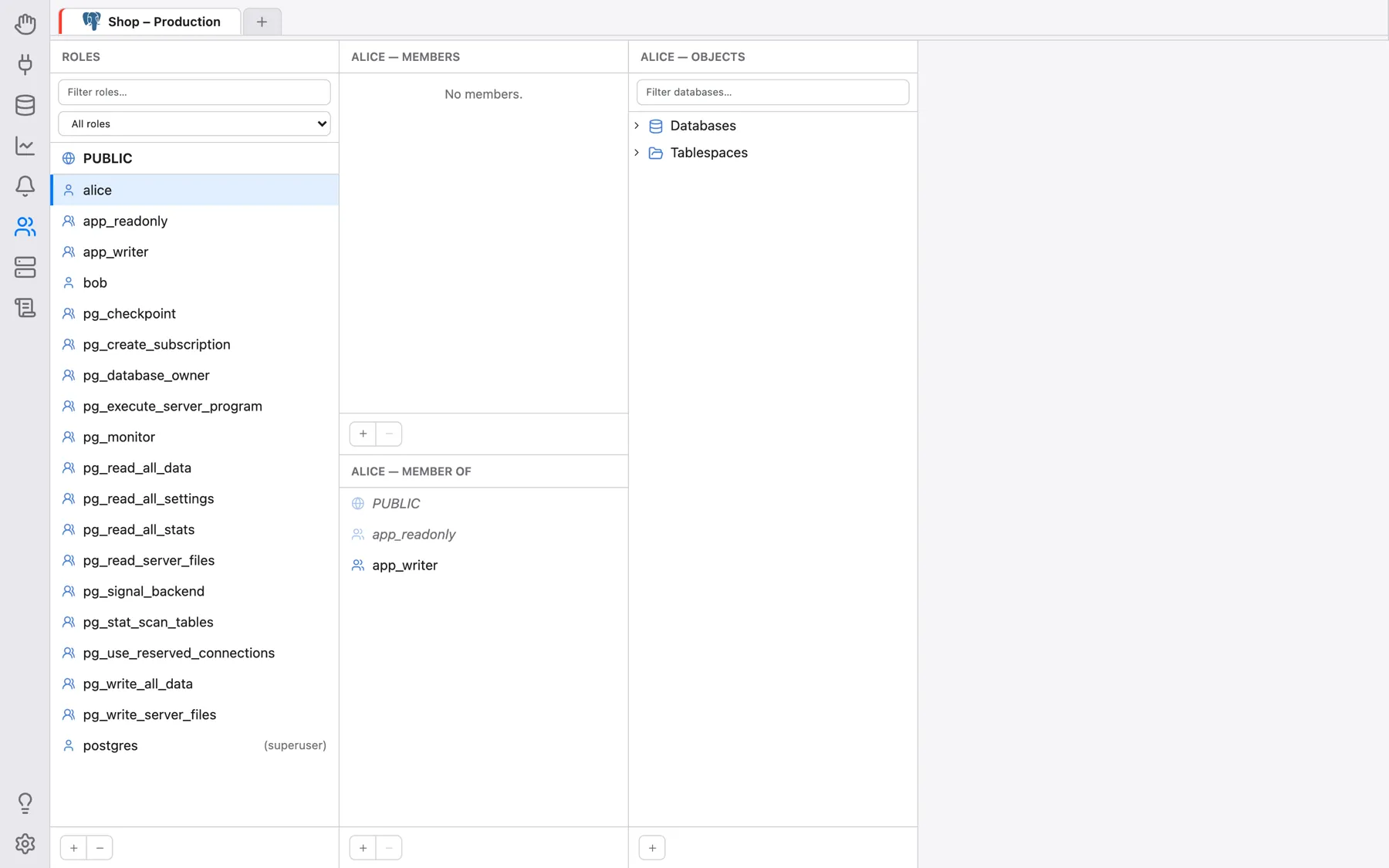
The Permissions section is a role and privilege browser for PostgreSQL. It lays a
server's roles out Finder-style, in side-by-side columns: pick a role on the left, and the
columns to its right show who it is a member of, who is a member of it, and what it can
actually do on every database object — including everything it only has indirectly, through
inherited role memberships or through PUBLIC. Roles, memberships, privileges,
default privileges and ownership can be created, changed and revoked right there.
Note: this section currently supports PostgreSQL only. For any other connection it shows Permissions are not yet supported for … / Currently only PostgreSQL is supported.
Opening the section
Click the Permissions icon (the people icon) in the left rail. The section works on a connection that is already open in the Database section: the same strip of open connection tabs is shown at its top, and the section uses whichever connection tab is selected there. With no connection open it shows No connection open — open one first (see Managing Databases). The columns are rebuilt every time you enter the section, so any earlier selection is reset.
Everything you do here needs the same privileges the equivalent SQL would need
(CREATEROLE, superuser, or ownership of the object, depending on the action) —
OmniDB runs the statements with the credentials of the connection you are using. The three
columns can be resized by dragging the thin handle on their right edge; a double-click on a
handle resets that column, and the widths are remembered.
Column 1: Roles
The Roles column lists every role on the server, including the built-in pg_*
roles, sorted by name. Roles that can log in (users) have a single-person icon; roles that
cannot (groups) have a two-person icon; superusers are marked (superuser) and roles
whose account has expired (expired). The first row is always PUBLIC (globe
icon) — not a real role, but the pseudo-role every role implicitly belongs to, so that
privileges granted to PUBLIC can be browsed and edited the same way.
The box above the list filters roles by name, and the drop-down next to it by kind: All roles, Users (can log in), Groups (no login), Superusers or Expired.
Click a role to focus it; the other columns then show that role. Below the list:
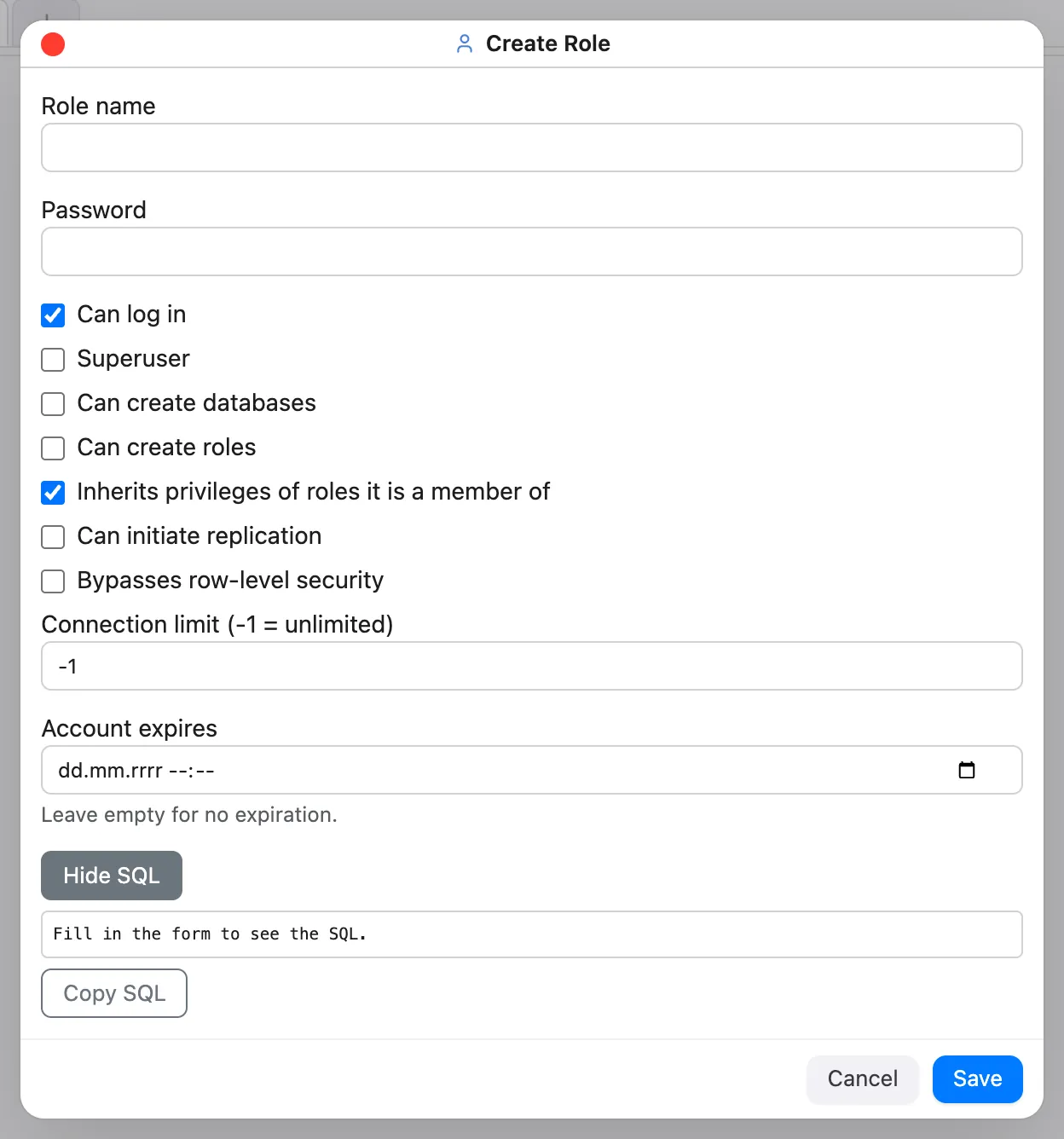
- + opens the Create Role dialog: Role name, Password, and the attribute checkboxes Can log in (on by default), Superuser, Can create databases, Can create roles, Inherits privileges of roles it is a member of (on by default), Can initiate replication and Bypasses row-level security, plus Connection limit (-1 = unlimited) and Account expires (leave empty for no expiration).
- − drops the selected role (disabled for
PUBLIC).
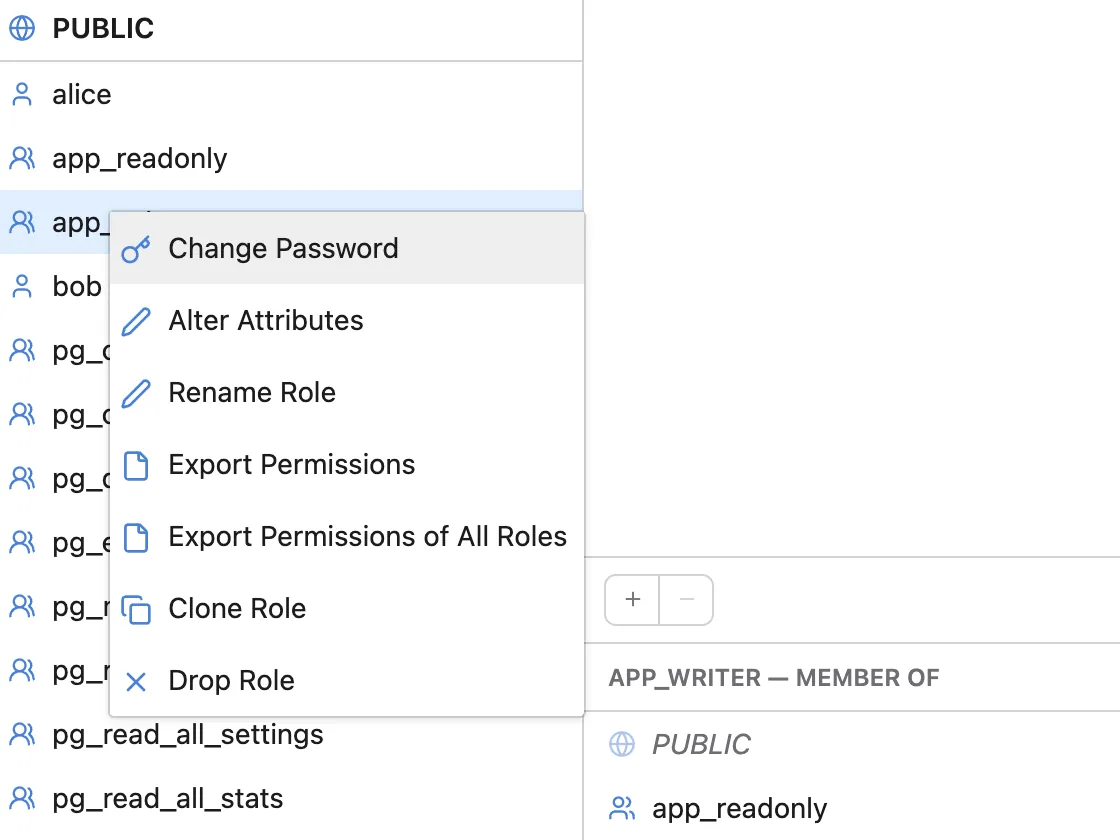
Right-clicking a role (not PUBLIC) offers:
- Change Password — asks for the new password twice. The password is hashed in the format the server itself is configured for (SCRAM-SHA-256 or md5) before it is sent.
- Alter Attributes — the same attribute fields as Create Role, pre-filled with the role's current values. Clearing Account expires removes the expiration.
- Rename Role —
ALTER ROLE … RENAME TO. Grants, memberships and ownership follow the role; the dialog warns that PostgreSQL clears a password stored as md5 on rename. - Export Permissions / Export Permissions of All Roles — a copyable SQL script
that recreates the permissions:
CREATE ROLE(attributes only), memberships, direct object privileges and default privileges, each database's statements under its own header. Each part can be switched off and the script regenerates; Save as file… stores it (a native Save dialog in the desktop app, a download in the browser). Passwords,PUBLIC's grants, ownership and role settings are not exported. - Clone Role — creates a new role with the source role's attributes and, optionally,
its direct memberships and its direct object privileges in every database (found through
pg_shdepend, so databases where it holds nothing are never opened). The password is not copied; you can set one in the dialog. Default privileges, owned objects and per-role settings are not copied. - Drop Role — if the role still owns objects or holds privileges, the dialog lists,
per database, what it owns and holds and asks which role takes over its objects. OmniDB then
runs
REASSIGN OWNEDandDROP OWNEDin every affected database (in that order, so nothing is deleted) beforeDROP ROLE. Without any dependencies it just asks for confirmation.
Column 2: memberships
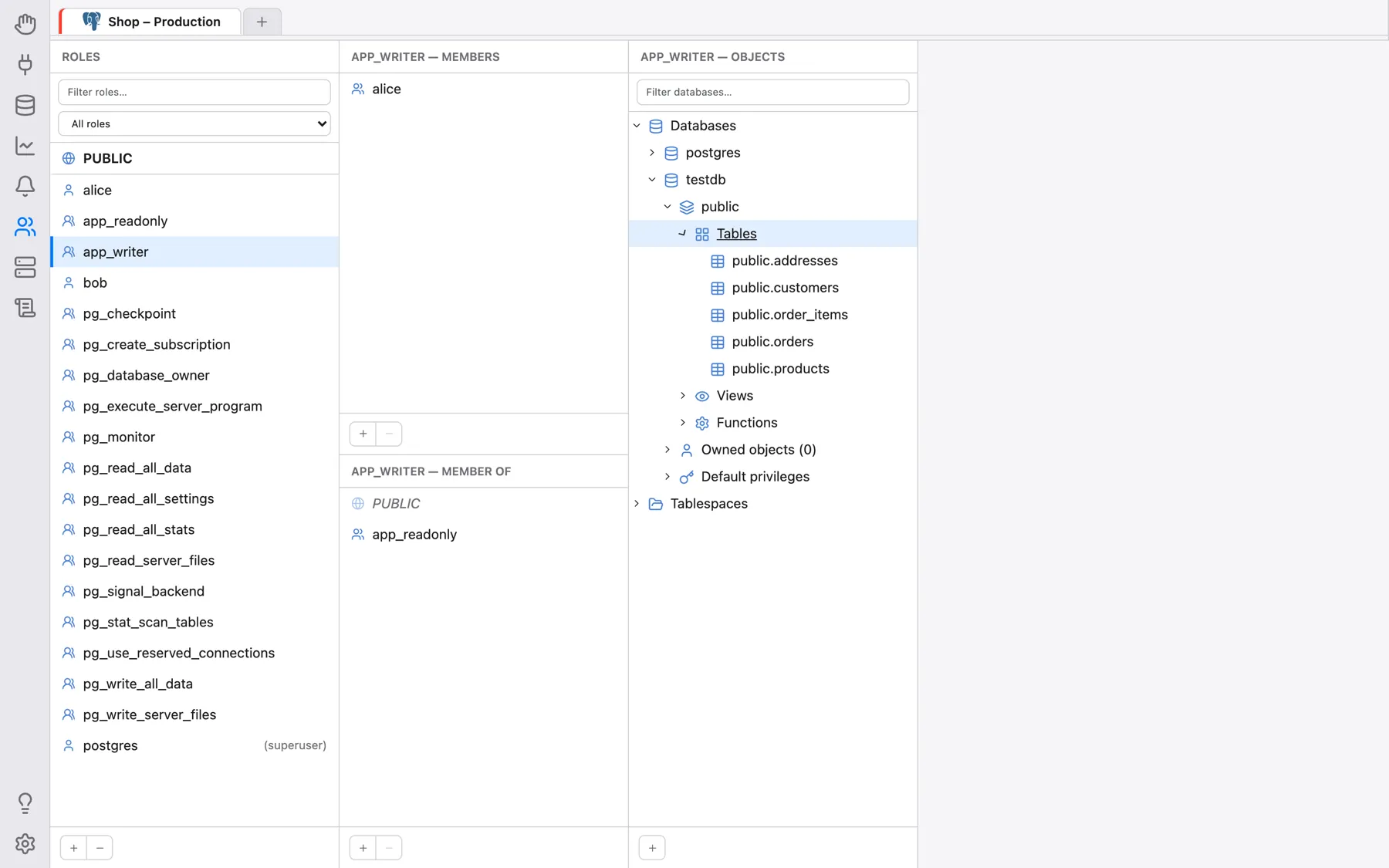
The second column is split in two halves:
- … — Members (top): the roles that are members of the focused role. With
PUBLICfocused it lists every role, since they all implicitly getPUBLIC's privileges. - … — Member of (bottom): every role the focused role belongs to, directly or
through other roles, flattened into one list.
PUBLICis always listed first.
In both halves, direct memberships are shown in normal text and indirect (inherited) ones
in italics with a faded icon. A direct membership granted WITH ADMIN OPTION is marked
(admin option); on PostgreSQL 16 and later, (no inherit) and (no SET)
mark memberships that lack the INHERIT or SET option.
- The + under Member of opens Grant Membership: pick one or more roles (click rows to toggle them) to make the focused role a member of, optionally With admin option. On PostgreSQL 16+ the dialog also offers INHERIT and SET choices (Server default / Yes / No).
- The + under Members opens Add Member: the same dialog the other way round — the picked roles become members of the focused role.
- − (or right-click → Remove Membership) revokes a membership after asking Revoke membership in "…"?. Only direct memberships can be removed; an inherited one has to be revoked where it is actually granted.
- Right-click → Edit Membership Options changes a direct membership's admin option
and (on PostgreSQL 16+)
INHERIT/SEToptions in place. - Double-clicking a row, or right-click → Set as Active Role, makes that role the focused one, exactly as if you had clicked it in the Roles column — the quickest way to follow an inheritance chain upwards.
Column 3: objects and effective privileges
The third column, … — Objects, is a tree of everything the focused role has any
privilege on — its effective privileges: its own direct grants plus everything it
inherits through its memberships and through PUBLIC. It starts with two groups,
Databases (every database on the server) and Tablespaces; a node is shown
normally if the role has some privilege there, and greyed out otherwise. The box at the top
filters databases and tablespaces by name and keeps its text when you switch roles.
Expanding a database loads its objects over a separate connection to that database (the connection tab's own active database does not change): Schemas, and inside each schema folders for Tables, Views, Sequences, Functions, Procedures, Materialized Views, Types and Domains; foreign data wrappers and foreign servers sit directly under the database. Only objects the role actually has a privilege on are listed (system schemas are left out); a schema shown greyed out is there only because something inside it is. Every database also has two extra folders: Owned objects (n), listing what the role owns there (up to 1000 entries), and Default privileges, described below. If there is nothing at all, the database shows No privileges on any object in this database.
Editing privileges
Right-click a database, tablespace, schema or object and choose Edit Privileges. The dialog lists every privilege valid for that kind of object as a checkbox:
- database:
CREATE,CONNECT,TEMPORARY; - tablespace:
CREATE; schema:CREATE,USAGE; - table, view and materialized view:
SELECT,INSERT,UPDATE,DELETE,TRUNCATE,REFERENCES,TRIGGER; - sequence:
USAGE,SELECT,UPDATE; - function and procedure:
EXECUTE; - type, domain, foreign data wrapper and foreign server:
USAGE.
The checkboxes show what the role holds directly:
- checked — granted directly to the role; uncheck it to
REVOKEit; - unchecked — not granted directly; check it to
GRANTit. If the role already has the privilege through another role orPUBLIC, it stays unchecked and is labelled Inherited from: … — you can still tick it to grant it directly, so it survives removing the membership it came from. To take an inherited privilege away, revoke it at its source (make the source role active with Set as Active Role).
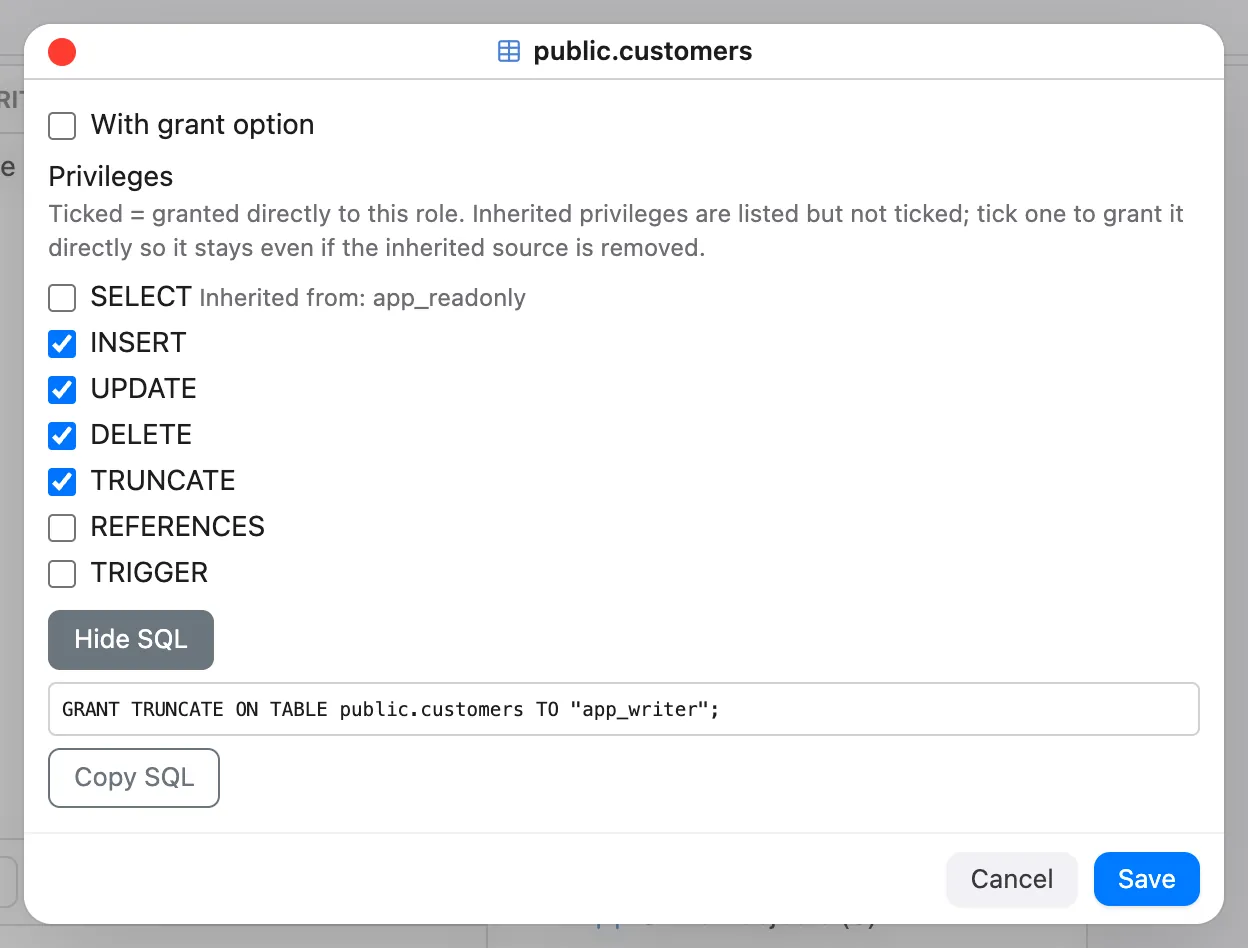
With grant option applies to the privileges you newly grant in that dialog. Confirm with Save.
To grant something on an object that is not in the tree yet, use the +
(Add Object Privilege) under the column: choose the Object Type, then the
Database (for everything except databases and tablespaces; it defaults to the
connection's current database), the Schema for schema-level objects, the
Object itself (functions are shown with their argument signature), tick the
Privileges and, optionally, With grant option. For tables, sequences, functions
and procedures the Scope choice can be switched from Selected object to All …
in the schema, with Grant or Revoke: OmniDB then runs GRANT/REVOKE
… ON ALL … IN SCHEMA, which affects the objects that exist now, not those created later.
Selecting PUBLIC in the first column lets you edit what is granted to
PUBLIC itself (GRANT … TO PUBLIC / REVOKE … FROM PUBLIC).
Default privileges
The Default privileges folder of a database lists the ALTER DEFAULT PRIVILEGES
entries that involve the focused role, either as the grantee or as the creating role. They are the
way to cover objects created in the future. Right-click the folder for Add Default
Privileges: choose the creating role (For objects created by), the schema (or all
schemas), the object kind (tables, sequences, functions, types, schemas) and the privileges. Right-click
an existing entry for Edit Privileges (only the ticks you change are granted or revoked) or
Remove Default Privileges.
Ownership and who has access
- Change Owner (context menu of any object in the Objects column) runs
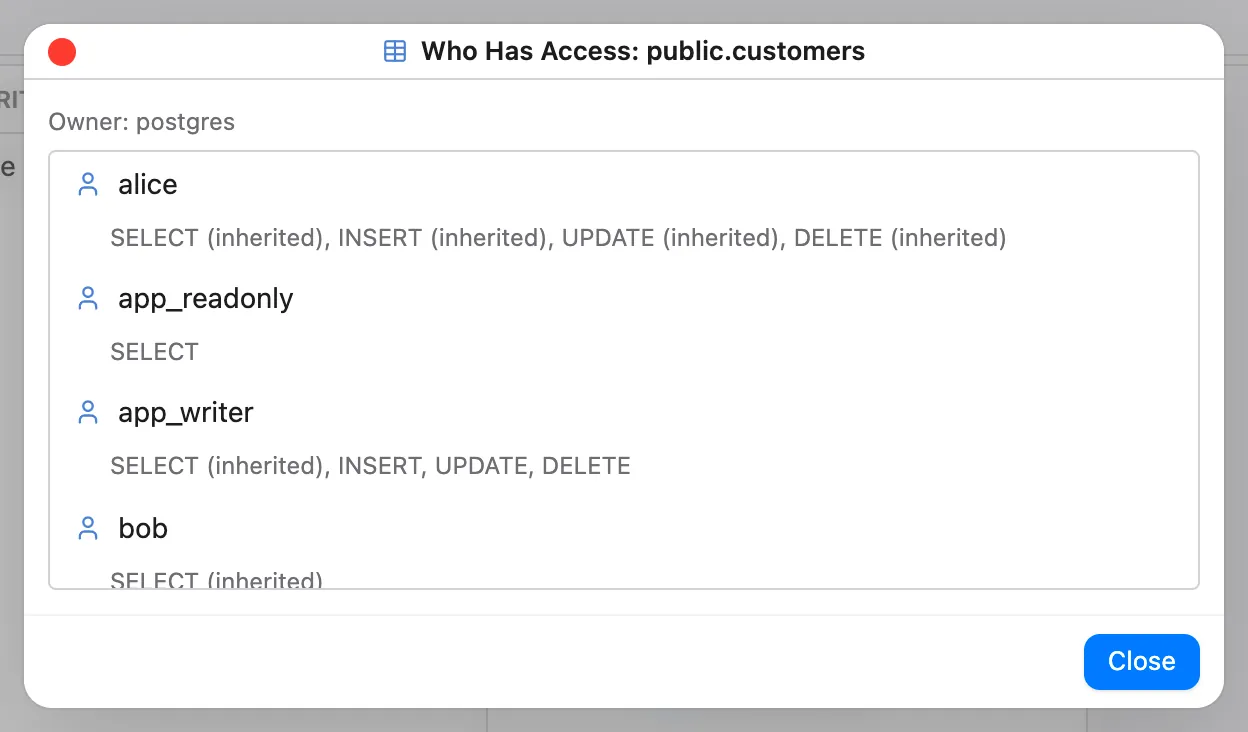
ALTER … OWNER TOfor the object. - Who Has Access is the reverse view: it lists every role that can do something
with the object and why — owner, direct grant, inherited through a membership or superuser —
plus
PUBLIC, with grant-option marks. The answers come from PostgreSQL's ownhas_*_privilegefunctions, so they match what the server really allows. Roles that only have whatPUBLICgives everyone are left out and superusers are folded into a collapsed group; clicking a role makes it the active role.
Previewing the SQL
The dialogs for creating, altering, renaming and cloning roles, adding memberships, granting or editing privileges, default privileges and changing owners have a collapsible Show SQL box. It shows the exact statements the current form values would run — built by the same server code as the real call, nothing is executed, passwords are masked — and keeps them up to date as the form changes. Copy SQL copies them.
Important: confirming a dialog executes the statements on the server immediately — there is no undo. Review them with Show SQL first. Drop Role, Remove Membership and Remove Default Privileges also ask for confirmation. If the server rejects a statement, its error message is shown.