

Additional Features
This chapter collects smaller features that don't need a chapter of their own. Several features that used to be described here now have their own chapters: Settings and Languages, Snippets, Notify, Connected Users (which replaces the former Backends tree menu) and Roles and Permissions.
The Welcome page
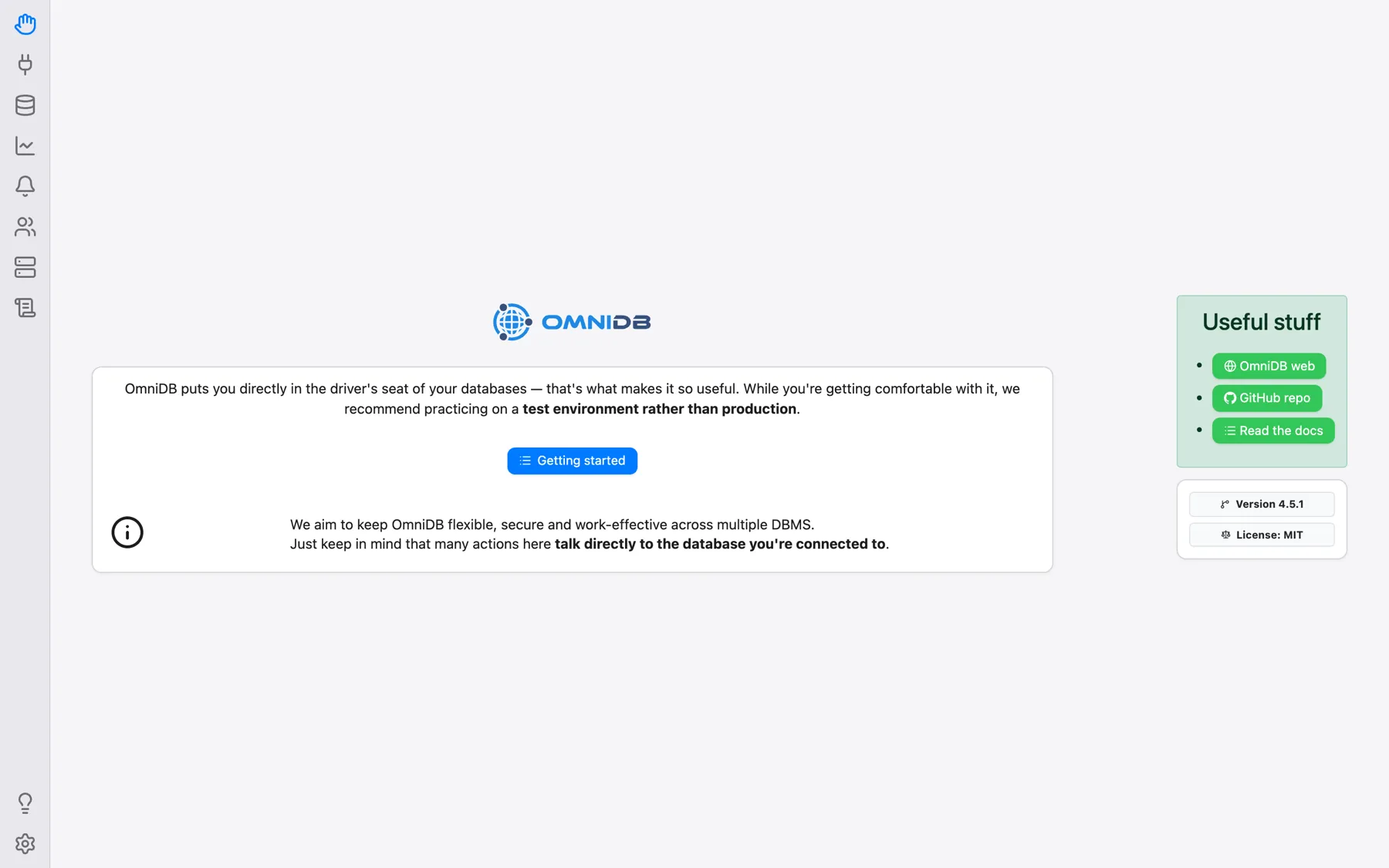
The Welcome icon at the top of the left rail opens a start page with the Getting started button, a reminder that most actions talk directly to the database you are connected to (so practice on a test environment rather than production), links to the OmniDB website, the GitHub repository and this documentation, and the version you are running.
Getting Started tutorial
The lightbulb icon near the bottom of the rail (Getting Started; in the desktop app also Help > Getting Started) opens a list of interactive walkthroughs that highlight the relevant parts of the screen step by step: creating an OmniDB user (server version only), creating a database connection, creating a terminal connection, meeting the snippets panel, using a connection and the connection tab (available once a connection is open). End walkthrough leaves a walkthrough at any time.
Contextual Help
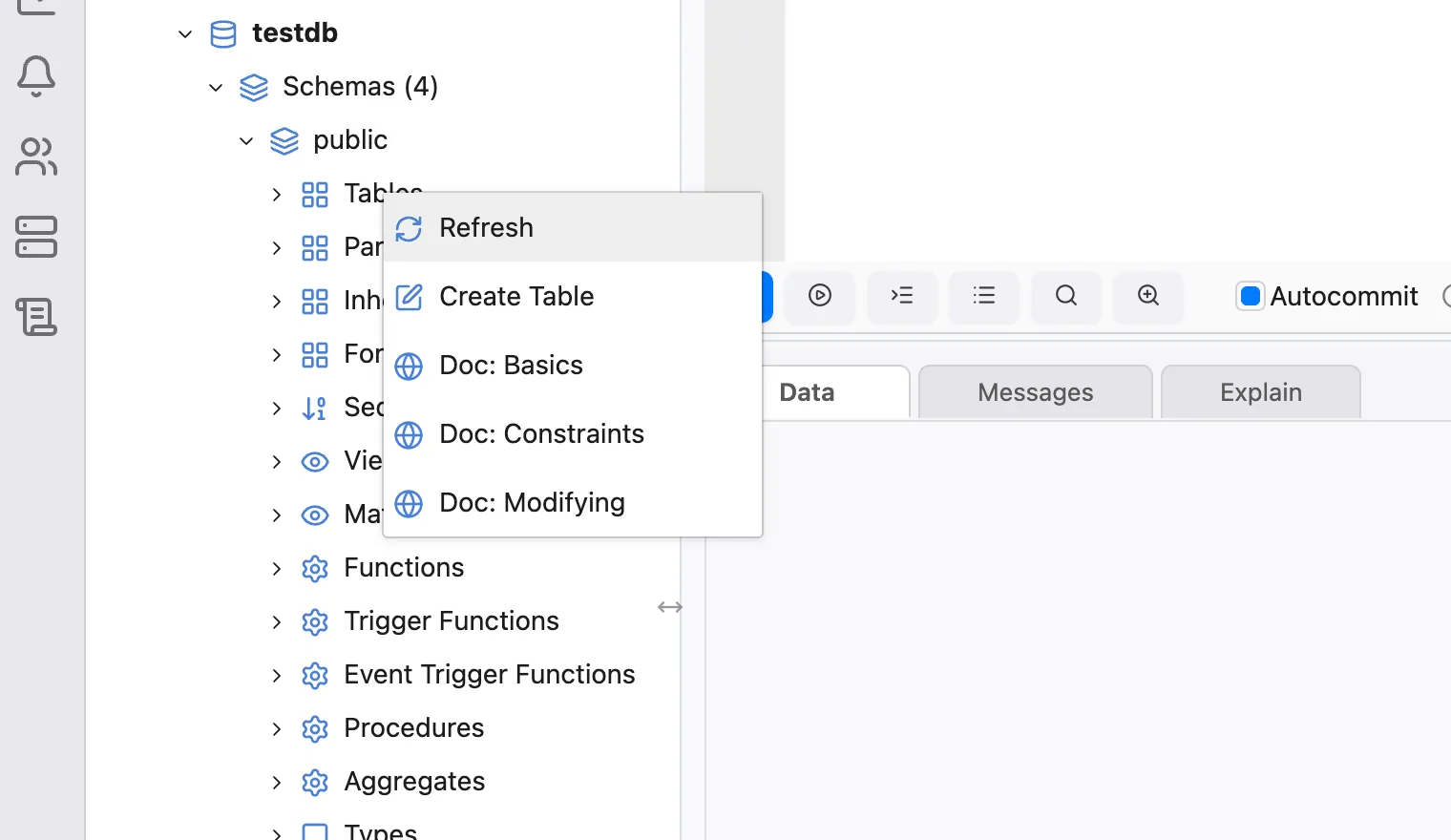
Most of tree nodes (generally grouping ones like Schemas or Tables) offer contextual help. This feature can be accessed by right-clicking the tree node. When you click the Doc: … option, OmniDB opens the specific page of the online PostgreSQL Documentation in your web browser (the system’s default browser in the desktop app, or a new tab when running as a browser-based OmniDB Server). It also picks the right documentation version for the PostgreSQL server you are connected to.
Properties and DDL
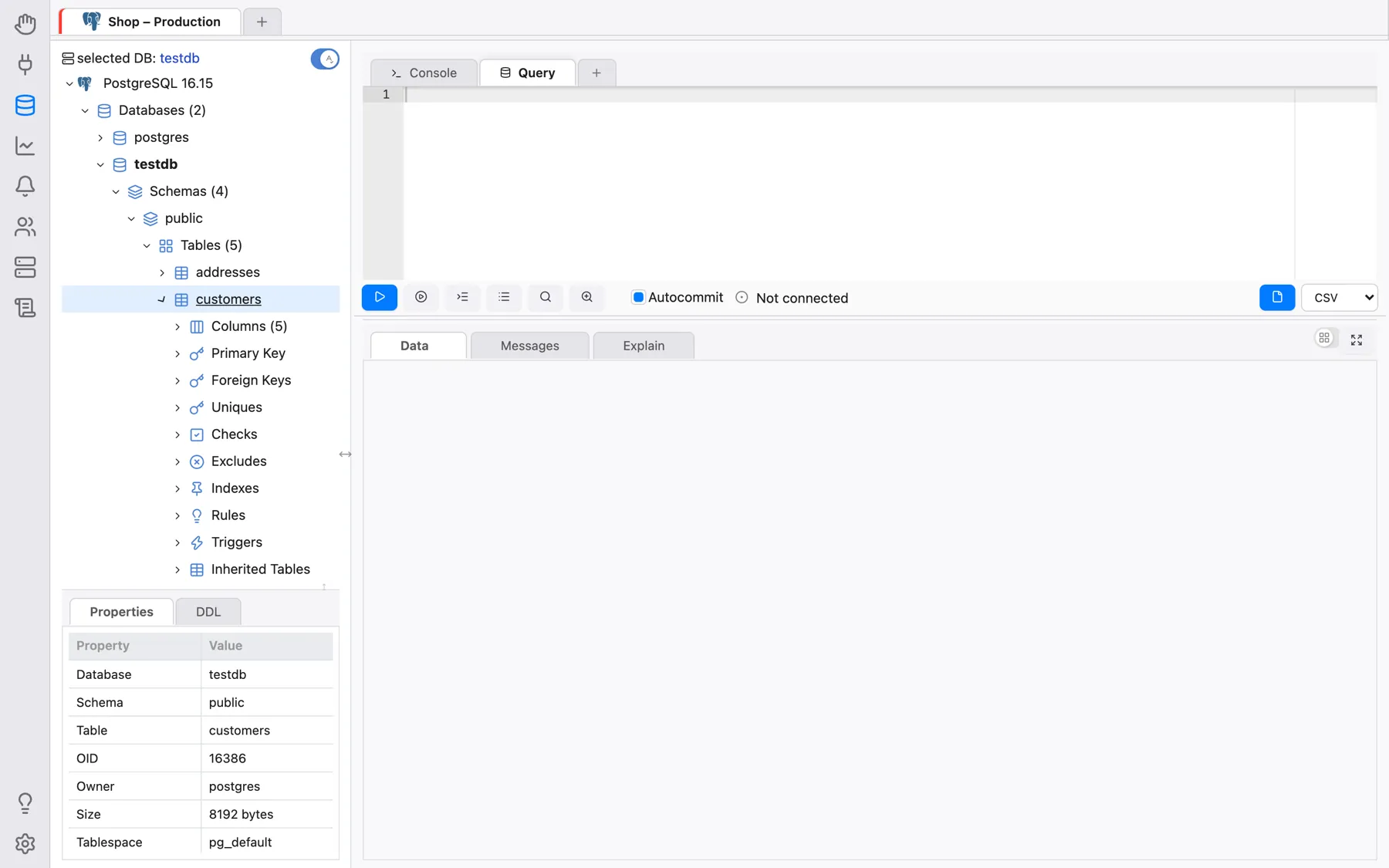
By clicking on most of objects in the tree view (tables, sequences, views, roles, databases, etc), the user will be able to see a very comprehensive list of properties of the object.
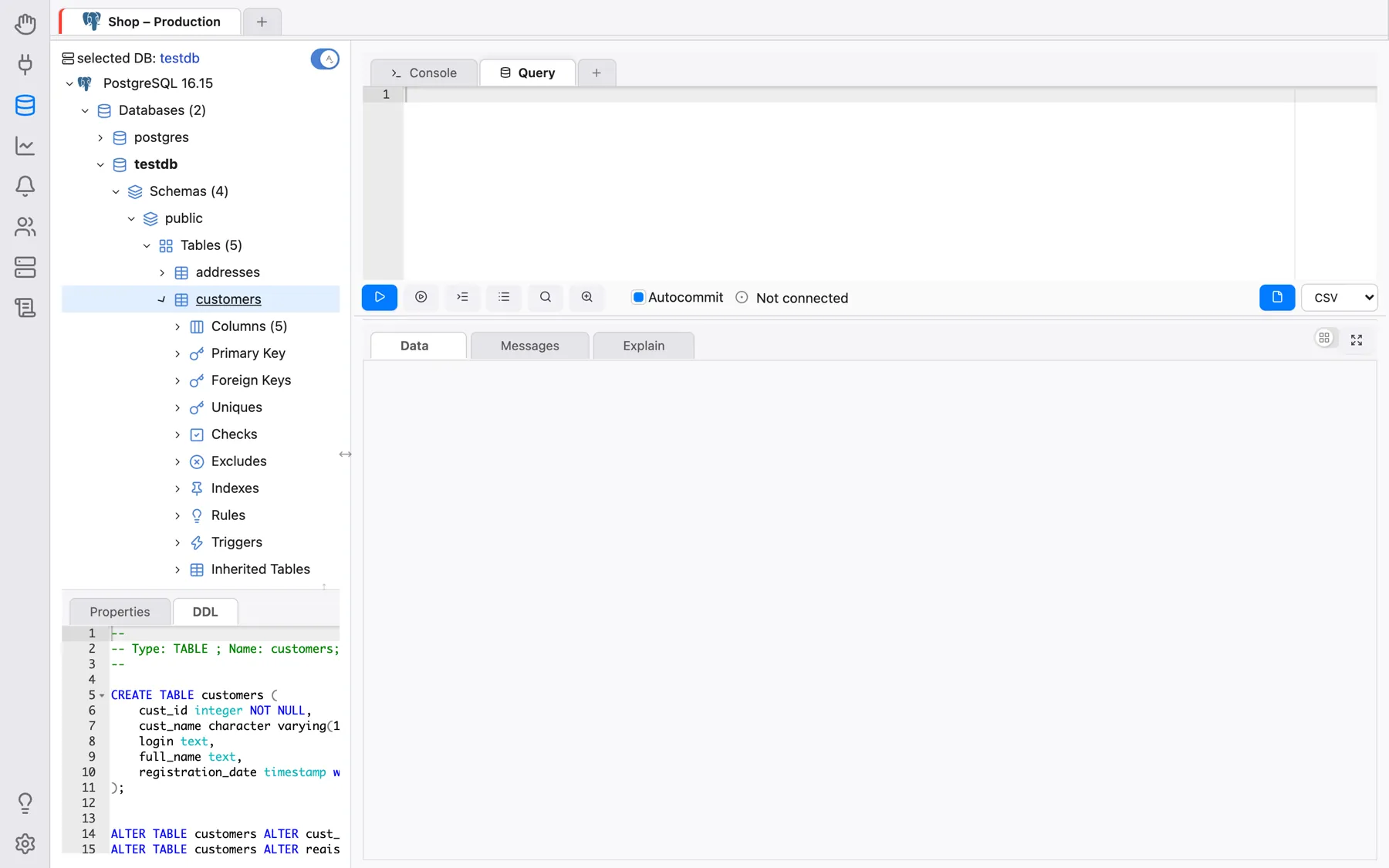
In the other panel called DDL, the user will be able to see the SQL DDL source
code that can be used to re-create the object — including its comment
(COMMENT ON …) and privileges (GRANT …) where the database has
them. The user can copy this text and paste it wherever he/she wants.
The divider above the Properties/DDL panel can be dragged, and the panel (as well as the database tree itself) can be collapsed with the small toggle button on its divider — in the desktop app also with View > Toggle Properties/DDL Panel and View > Toggle Database Tree.
Export Data
The Query Tab can save the results of its query to a CSV, TSV, XLSX, JSON, XML or Markdown file. Pick the format in the drop-down next to the Export Data button and click the button: OmniDB runs the query again in the background and writes the whole result to the file (the export can be cancelled while it runs).
- In the desktop app, a native Save As dialog opens so you can choose where to save the file, and OmniDB confirms with File exported to: ….
- In the browser (server version), the result area shows The file is ready. with a Save link that downloads it.

CSV and TSV files use the encoding set in Settings > Export > CSV/TSV
Encoding (default: UTF-8 with BOM), and CSV files the CSV Delimiter set there
(default ;). Export files are kept in a temporary folder inside OmniDB’s home
directory, can only be downloaded by the user who created them, and are removed
automatically after 24 hours.
Export as DBML
Right-click a database node in the PostgreSQL tree and choose Export as DBML to generate the whole database's schema as a DBML (Database Markup Language) document — every table, column, data type, primary key, unique and foreign-key constraint, index and comment — via a single pure-SQL introspection query adapted from the pg_dbml project.
DBML is a compact, plain-text schema format, which makes it a good fit for giving an LLM/AI
assistant context about your database: pasting a .dbml file into a chat is far
cheaper in tokens than pasting a full SQL dump or having the model run its own introspection
queries table by table, while still precisely describing every table, column, type and
relationship.
The generated file defaults to <database>.dbml. In the desktop app this opens
the native Save dialog, just like Export Data; in the browser (server) it shows a
Download/Cancel prompt instead — Cancel discards the generated file
right away rather than waiting for the temp folder's 24-hour cleanup. Currently PostgreSQL
only.
Query History
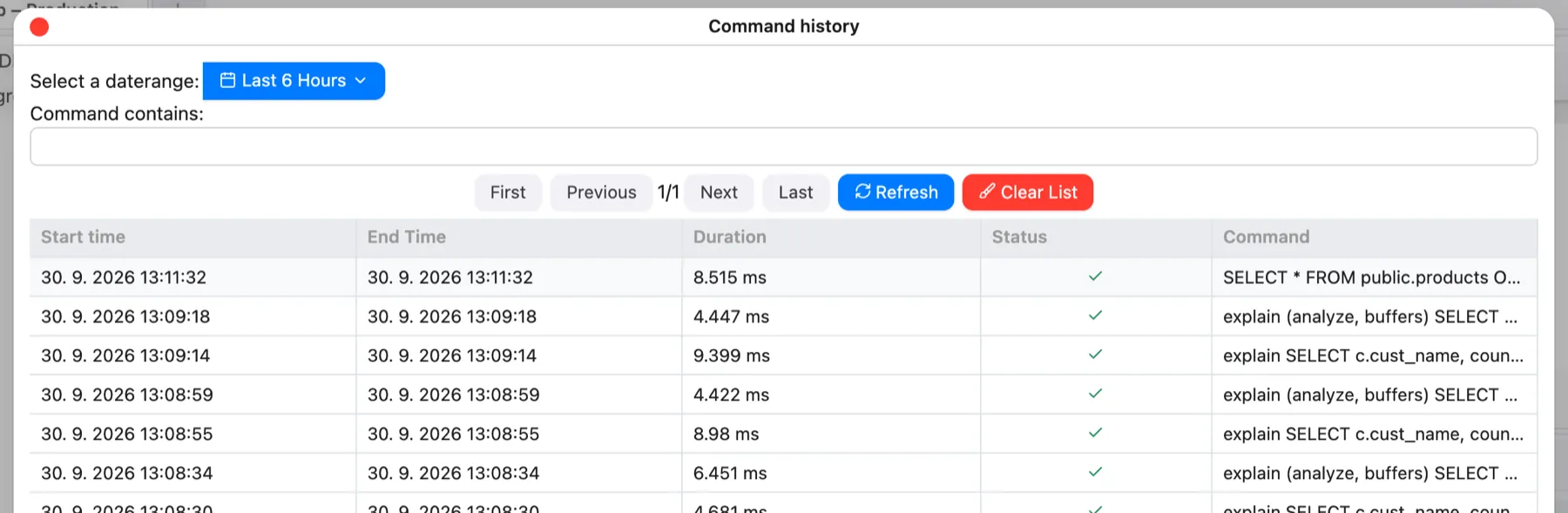
From the Query Tab you can click on the Command history button to see a full, browsable and searchable list of the commands run on this connection, filterable by date range and text. See Writing SQL Queries.
SSH Console
Besides database connections, OmniDB can open a full-featured SSH terminal to a server. Create a connection of type Terminal in the Connections section, filling in the SSH server, port, user and password or private key (see Creating Users and Connections). Open it from the + at the end of the connection tab strip → SSH Consoles, or with Connect in its form. The terminal opens as its own connection tab; the server's host key must already be known — see Security and Multi-user Server.