

Console Tab
The Console Tab provides an easy and comfortable way to interact with your
databases. Users familiar with the psql command line utility will
recognize the general shape — a scrollback log plus an input editor — and a
useful subset of its backslash commands work here too:
\?: show the command list;\dt: list tables;\d: list tables, views and sequences;\d NAMEdescribes one of them (its columns, types, nullability and defaults) —NAMEcan be schema-qualified (\d public.customers);\du: list roles/users;\l: list databases;\df: list functions;\x: toggle expanded/vertical output;\timing: toggle showing execution time.
These map to whatever each connected engine actually has: MySQL/MariaDB’s
“database” doubles as its schema, Oracle’s “user” doubles as its schema (and
it has no separate multi-database concept), and SQLite has none of
schemas/roles/databases at all — where an engine genuinely has nothing to
show, the command says so directly instead of returning an empty or
misleading result. \h (per-SQL-command syntax help, like a PostgreSQL
manual page) is not implemented.
The editor on the bottom of the tab area is full-featured just like the Query
Tab editor (it provides syntax highlight and autocomplete with Ctrl-Space, Option-Space on macOS, and its right-click menu offers Save as snippet and Use snippet).
To execute a command, just type it in this editor. If the command is a backslash
(starts with \), just type Enter and it will be executed. If it is a regular
SQL command, then it can be multi-lined, and you will need to press Alt-Q (Ctrl-Q on macOS) to
execute it.
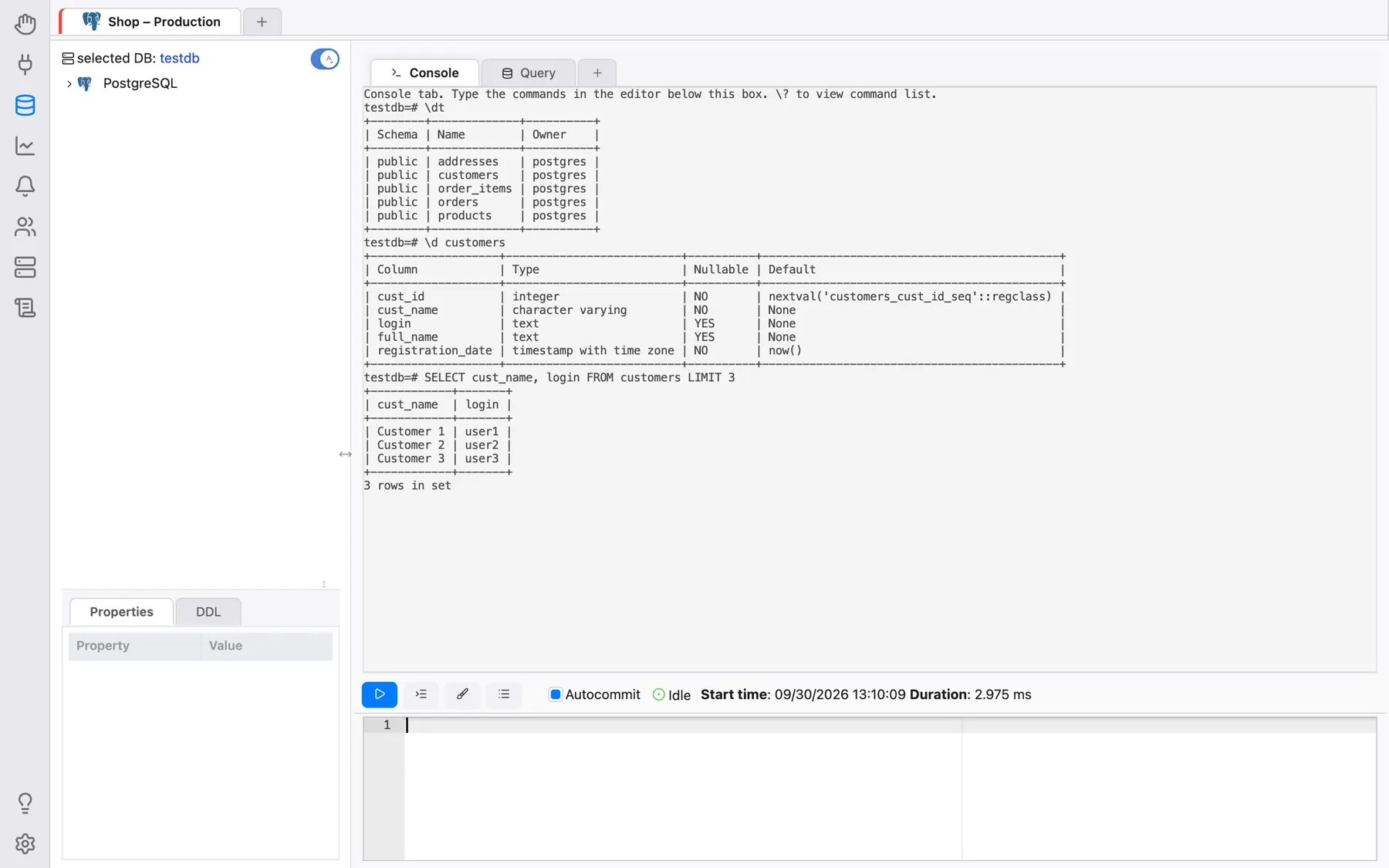
All commands and its output will be logged into the display area, which is textual and read-only, so you can copy and paste its contents somewhere else. You can clear the display area by clicking on the Clear Console button.
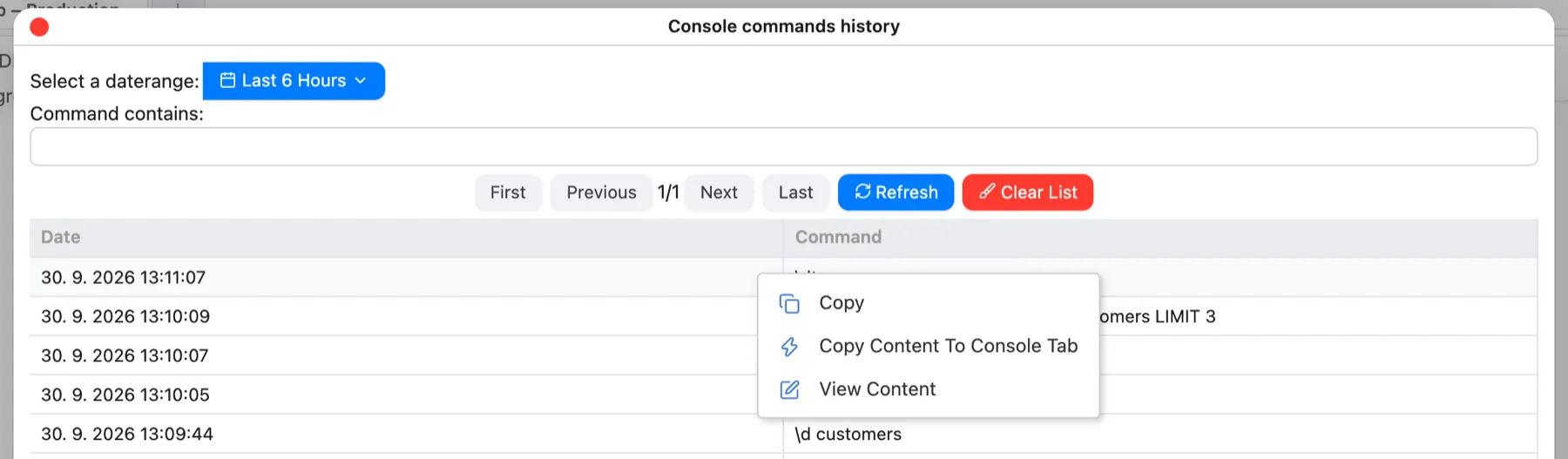
All commands also are logged in the connection query history, and also in a local console history, which you can open with the Console commands history button next to the editor. The list can be filtered by date range and by text.
Right-click a row of that list for Copy, Copy Content To Console Tab — which puts the command into the editor so you can amend it and execute it — or View Content.
These backslash commands are useful when dealing with databases every day. The console tab will also show any errors and the results of any SQL command you type in a pretty way. Try it out!