

Creating, Changing and Removing Tables
Table structures — creating, altering and dropping — are managed with editable SQL templates rather than a graphical form. This gives you more direct control than a point-and-click designer, at the cost of writing a little SQL yourself: OmniDB fills in a working starting template and you edit it before running it.
Creating tables
We will create example tables (customers and addresses) in the testdb
database we connected to earlier. Right click on the Tables node and select
the Create Table action. This opens a new Query tab pre-filled with a
CREATE TABLE template for the current schema.
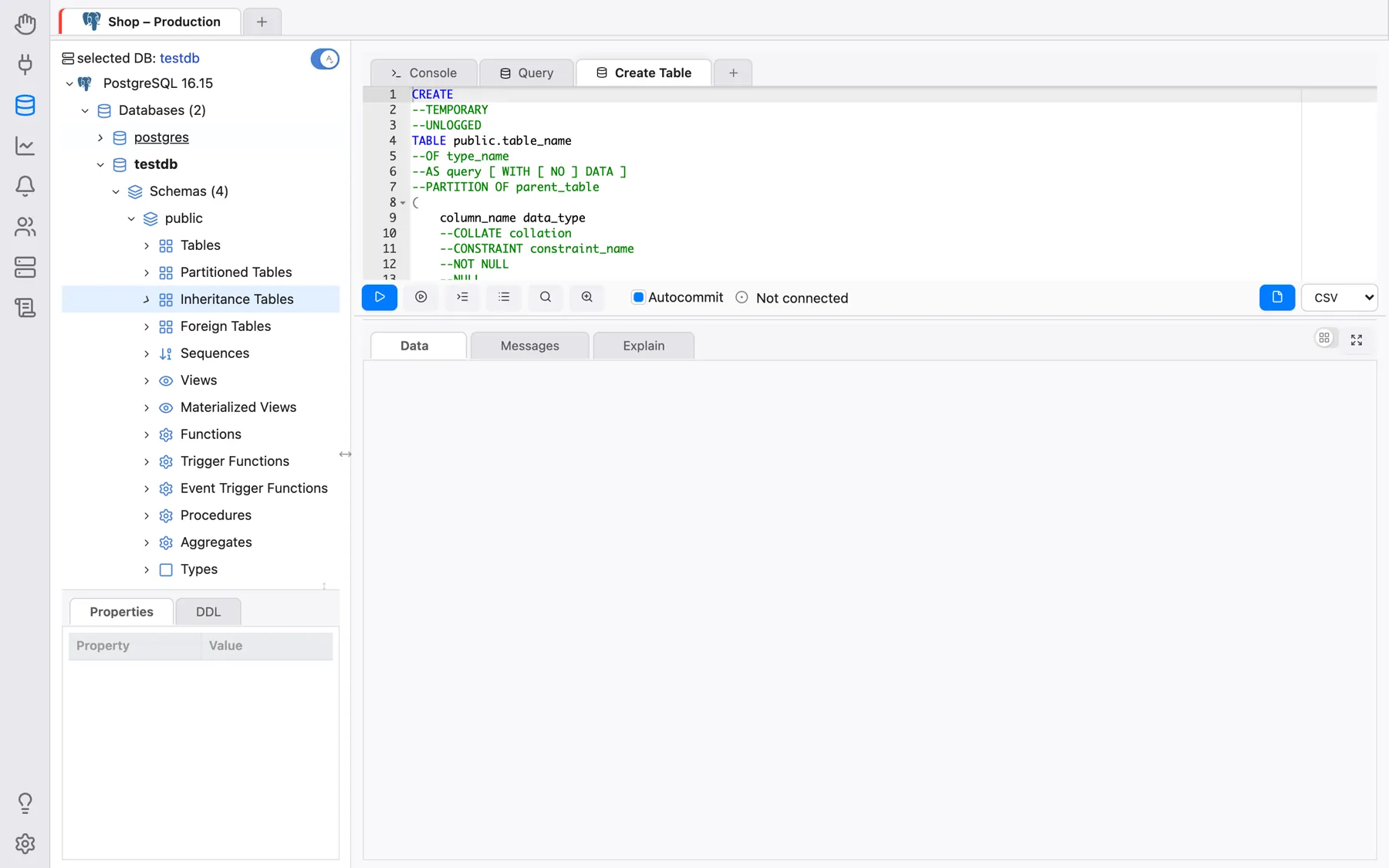
Edit the template into the table you actually want — for customers, a primary key that addresses will later reference:
CREATE TABLE public.customers (
	cust_id serial PRIMARY KEY,
	cust_name varchar(100) NOT NULL
);
Run the statement (the same way you run any query). Right-click the Tables tree node and click Refresh — the new table now appears under it. Keeping customers selected in the tree, you can inspect its generated Properties and DDL in the panel beside the tree, the same panel used for every other object type.
Now create addresses, with a foreign key back to customers:
CREATE TABLE public.addresses (
	add_id serial PRIMARY KEY,
	add_street varchar(200) NOT NULL,
	add_number integer,
	cust_id integer NOT NULL REFERENCES public.customers (cust_id)
);
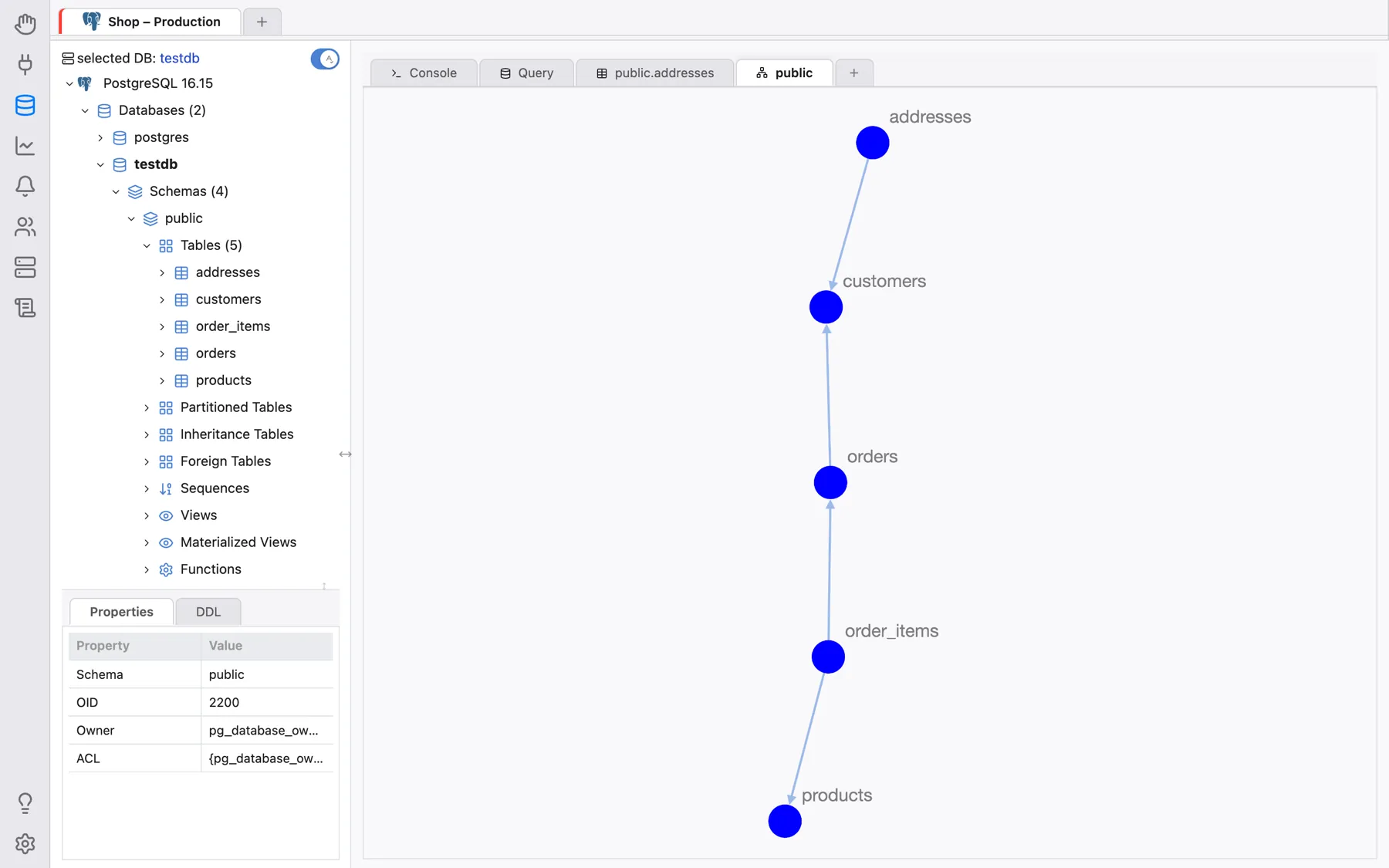
At this point there are two related tables in schema public. You can see the
schema structure with the graph feature: right click the schema public node
and select Render Graph > Simple Graph for just the tables and their
relationships, or Render Graph > Complete Graph to also include columns and
constraints. Both render as an interactive, pannable/zoomable diagram.
Altering tables
To change an existing table — say, adding a column to customers — right
click the table node and select Table Actions > Alter Table. This opens a
Query tab with an ALTER TABLE template you edit and run, the same pattern as
table creation:
ALTER TABLE public.customers ADD COLUMN cust_age integer;
Any error the database returns — for example trying to add a column name that already exists — shows up the same way any failed query does: in the query tab’s Messages panel, with the exact command and error text from the database.
Removing tables
To drop a table, right click the table node and select Table Actions > Drop
Table. This, too, opens an editable template (DROP TABLE ...) rather than
dropping immediately — review it and run it when you’re ready.