

Snippets
Snippets are pieces of text — queries, scripts, command templates, notes — that you keep in OmniDB and reuse from any SQL editor. They are organized in a folder tree, stored in OmniDB's own user database (so they survive upgrades) and private to each OmniDB user.
The Snippets section
Click the Snippets icon (the scroll) in the left rail. The section shows the folder tree on the left and snippet editor tabs on the right; the divider between them can be dragged.
Right-click empty space in the tree for Refresh, New Folder and Add Snippet. Right-clicking a folder offers the same plus Rename Folder and Delete Folder; right-clicking a snippet offers Edit, Rename and Delete. Double-clicking a snippet opens it in an editor tab (or switches to it, if it is already open). The + button below the tree adds a snippet to the selected folder (or at the top level), and − deletes the selected item.
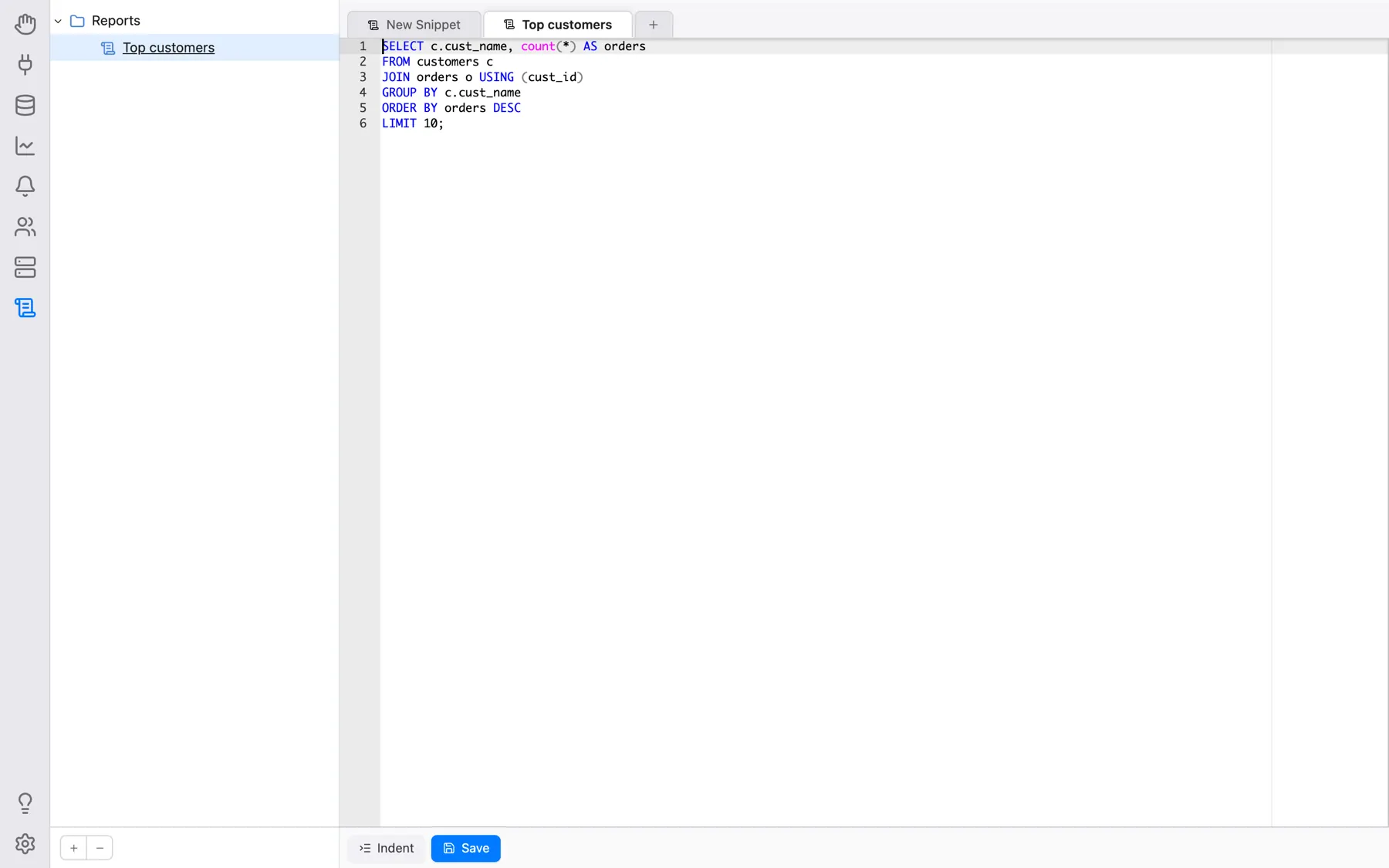
Editing and saving
Each editor tab is a full SQL editor (syntax highlighting, autocomplete, find & replace) with Indent and Save buttons below it. The section always starts with one empty New Snippet tab, and the + tab opens another one.
A small dot next to a tab's title means it has unsaved changes; saving clears it, and closing a tab only asks for confirmation when it actually has unsaved changes. Saving a snippet that was opened from the tree overwrites it. Saving a new, unnamed tab opens a menu instead: New Snippet (asks for a name and saves it at the top level), OVERWRITE … for each existing snippet, and a submenu for every folder with the same choices inside it. Overwriting an existing snippet asks for confirmation first.
Keyboard shortcuts in the Snippets section (they can be changed under Settings > Shortcuts > Snippets):
| Action | Windows/Linux | Mac |
|---|---|---|
| Save Snippet | Ctrl-S | Command-S |
| New Snippet | Ctrl-N | Command-N |
| Close Snippet Tab | Ctrl-W | Command-W |
Using snippets from a Query or Console tab
Right-click inside the editor of a Query or Console tab:
- Save as snippet saves the editor's text as a snippet, using the same menu as above (a new snippet, or overwrite an existing one, in any folder);
- Use snippet (shown once you have at least one snippet) inserts the chosen snippet's text at the cursor.