

Creating Users and Connections
Logging in as user admin
OmniDB comes only with the user admin. If you are using the server version, the first
thing to do is sign in as admin with the one-time random password that omnidb-server
printed to its log output when it created a new app database (the line containing
initial login: admin / …), and then change it under Settings. If that password gets lost, reset it with omnidb-server --set-password admin. After 10 failed sign-in
attempts for the same username or client IP address, sign-in is locked for 15 minutes. The desktop app
has no sign-in at all — it runs as a single local user, so everything about user management below
simply does not appear there.
Finding your way around
The whole workspace is reached from the vertical icon rail on the left edge of the window: Welcome, Connections (the plug), Database, Monitoring, Notify, Permissions, Connected Users and Snippets at the top, and Getting Started, Account (server version only) and Settings (the cog) at the bottom. Hovering an icon shows its name. See Managing Databases for how the sections work together, and Settings and Languages for the interface language and other preferences.
Creating another user
Open Settings at the bottom of the rail and pick the Account category, then click Manage Users. Only a super user has that button — a regular user's Settings has no Account section at all.
The User management window lists the existing users. Click Add new user (the person-with-plus icon) to insert a new, blank user row, shown as (pending info) until you fill it in. Fill in the User name and New password, switch on Superuser? if the new user should be one, and click Save. You can create as many users as you want, edit existing ones, and delete a user by clicking the red cross in the actions column.
To sign out, click the Account icon (the person, near the bottom of the rail) and then Sign out.
Deleting a user, or taking away superuser status, takes effect immediately, including for that user's sessions that are already open.
The Connections section
Click the plug icon in the rail. Connections are a full section of the workspace, not a popup: a master–detail split view with the list of saved connections in the sidebar on the left and the selected connection's own form and buttons on the right.
Each row in the list shows the database engine's icon, the connection's name, and below it the
user@server:port it points at (or the connection string, or the SSH target for a
terminal connection). A small colored dot marks the connection's environment, and a key icon marks
one that goes through an SSH tunnel.
Creating connections
OmniDB supports PostgreSQL, MySQL, MariaDB, Oracle, MS SQL Server, Firebird and SQLite, plus a Terminal connection type that opens an SSH shell instead of a database. The Connection Type list shows PostgreSQL first, then the others alphabetically, and Terminal last.
For SQLite, the connection points at a database file (on the machine where
omnidb-server runs); if the file does not exist yet, Test Connection says so
and the file is created when you first use the connection. On a multi-user server, SQLite
connections are reserved for superusers, and some PostgreSQL connection-string parameters that read
files on the server are rejected — see Security and Multi-user
Server.
Click the + button under the list to create a connection. Type its name into the
heading of the form on the right, choose the Connection Type, and fill in the
Host Connection Info card: Server, Port, Database,
User and, optionally, User Password. Instead of those individual fields you can
fill in a single Connection string (for example
postgresql://postgres@localhost:5432/postgres) and leave the rest blank. When you are
done, click Save in the top right corner of the form.
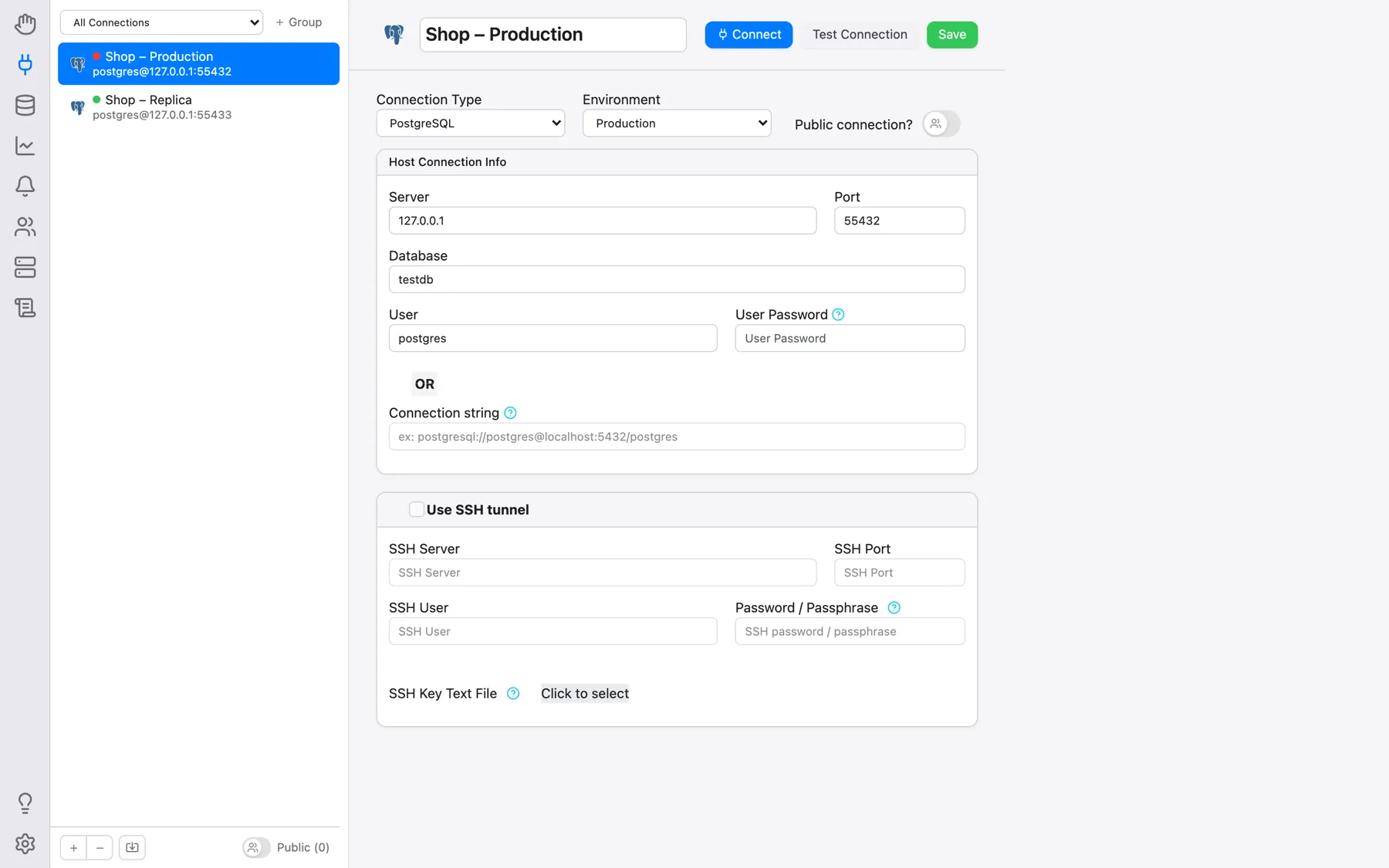
Test Connection next to it tries the connection without opening it and reports either Connection successful. or the exact error the database returned. The − button under the list deletes the selected connection; it stays disabled for a connection that is currently open in a tab.
Passwords
The User Password field is optional, and the two choices behave differently:
- Filled in: the password is saved into OmniDB's own configuration database and used automatically every time you open the connection. It is encrypted (AES-256-GCM) before being written to that database file, using a key kept in your operating system's own secret store (Keychain on macOS, Credential Manager on Windows, Secret Service on Linux) rather than inside the file itself — so the database file alone is no longer enough to read the passwords in it. If no such secret store is available, OmniDB falls back to a key file kept alongside the database.
- Left blank: nothing is stored, and OmniDB asks for the password when you open the connection. What you type is kept only in the server's memory, for your session and that connection, for 30 minutes — after that OmniDB asks again.
For PostgreSQL, OmniDB also looks the password up in your .pgpass file at connect
time, matching the same entry libpq would, so a connection with no stored password can still open
without a prompt. In the sandboxed macOS app the password prompt offers
Grant access to .pgpass…: you point at the file once and every later connection resolves
its own password from it.
If the database refuses the attempt, the prompt stays on screen showing the error OmniDB got (fe_sendauth: no password supplied, an authentication failure, a server that is down, and so on), so you can correct the password and try again.
Importing connections from .pgpass
The file-import icon next to the + and − buttons reads a .pgpass
file and creates one PostgreSQL connection per concrete line in it, as a bare
postgresql://user@host:port/db connection string with no password stored — the point
being to keep authenticating from that file rather than copying passwords into OmniDB. Wildcard
(*) lines are skipped, and so is any line that already matches an existing
connection.
Organizing the list
- Order: drag a row to any slot in the list. The arrangement is stored per user and survives a reload and a restart. Connections you create later are added at the bottom.
- Groups: the selector at the top of the sidebar filters the list down to one group. + Group creates a group, and the … button next to it offers Rename, Manage Connections (turns the rows into checkboxes so you can pick which connections belong to the group, then Save changes) and Delete.
- Public connections: the Public connection? switch in the form makes a connection usable by every other OmniDB user. Only its owner can edit it; other users never see its saved password (a password inside its connection string is masked for them), and their Test Connection always tests the stored server. The Public (n) switch at the bottom of the sidebar shows or hides other users' public connections in your own list.
- Environment: tagging a connection Production, UAT, Development or Archive colors its dot in the list and the edge of its open tab — mainly a safety cue, so reaching for the wrong tab is visibly obvious.
Opening a connection
Click Connect in the form, or simply double-click a row in the list, and OmniDB opens it in a new Connection Outer Tab as we can see in the next chapter. Right-clicking a row opens a context menu (Connect/Edit/Delete — Delete is omitted for a connection that is already open), and right-clicking empty space in the list offers New Connection/Refresh.
Using SSH tunnels
OmniDB allows the user to connect to any remote database through SSH tunnels. Tick Use SSH tunnel in the connection's own form — that enables the fields below it:
- SSH Server: The server you are connecting to via SSH. Its host key must already be
in the
~/.ssh/known_hostsfile of the operating-system user running OmniDB, otherwise the tunnel is refused — see Security and Multi-user Server; - SSH Port: The port of the SSH server (default is 22, but it can be any port number);
- SSH User: The operating system user name you use to connect to the SSH server;
- Password/Passphrase: The password of the operating system user (or the passphrase for the key below). Leave it blank and OmniDB asks for it each time the tunnel is opened, without storing it. If you fill the field SSH Key Text File, a password is optional;
- SSH Key Text File: The contents of the local private SSH key you can use to connect to the SSH server. OmniDB reads the file you pick and stores its text, not the file itself. If you fill this field, then you can also fill the field Password/Passphrase, but in this case it will be the passphrase for the SSH private key.
Everything you do store here — the SSH password, the passphrase and the key text — is kept in the same local OmniDB configuration database as the database passwords, encrypted the same way.
While using SSH tunnels, you also need to fill all database fields accordingly. But instead of being relative to the OmniDB server, they will be relative to the SSH Server. This can be done in 2 scenarios as explained below.
If the database is inside the same server as you are connecting to via SSH, then you will have a situation like this:
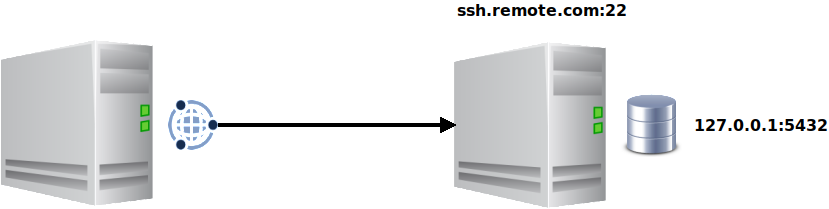
In this scenario, the database Server will be 127.0.0.1, as the database is
in the same machine as the SSH Server.
But the database can be outside the SSH server, like this:

Here the database Server needs to be 192.168.0.10, as it is the relative
address for the SSH server to connect to the database server.